26일차에는 과제가 있었다. 로드밸런서를 생성하는 부분은 시간이 많이 필요해서 아직 실습이 진행중이긴 하지만 요약하자면, Terraform 을 이용해서 GitHub에 앱을 배포할때, GitHub 상에서 자동으로 스크립트를 실행할 수 있는 Action에 대해 다루는 실습이 대부분이다. 이를 이용해 카카오클라우드에 자동으로 인스턴스와 보안그룹을 생성할 수도 있다.
기본 세팅이 연동된 코드를 베이스로 진행했기 때문에, 스크립트에 대한 이해도는 아직 부족하지만 돌아가는 원리는 이해가 된 것 같다.
1. 리눅스 실습 - 테라폼 모듈
Terraform과 Github Action을 활용 기본 배포를 구현해봅시다. Kakaocloud와 Terraform 연결은 가이드가 충분하지 않아 기본 세팅을 연동해두었습니다. (VM 1대 띄우는 예시 코드)
kakaocloud-terraform.tar.gz
1-1. 개요
Terraform 모듈(Module)은 반복 가능한 리소스 묶음을 재사용할 수 있게 해 주는 기능입니다. 이를 통해 코드 중복을 줄이고 관리·유지 보수가 용이해집니다.
1-2. 환경 설정
- 테라폼 설치
- Github에 테스트용 레포지터리 하나 만들어두고 실습폴더에 Clone해두기
- 기본 디렉터리 구조
lab-terraform-modules/
├── modules/
│ └── compute/
│ ├── main.tf
│ ├── variables.tf
│ └── outputs.tf
└── main.tf
1-3. VM 1개 띄워보기
- 설정파일 채워넣기
- terraform.tfvars
username     = "ooo@gmail.com"
password     = "****"
tenant_name  = "kc-sfacspace"
region       = "kr-central-2"
project_name = "kc-sfacspace"
dev_name = "ooo"

# 네트워크 설정
network_name = "sfacspace-default"

# 인스턴스 설정
create_instance   = true
image_name        = "Ubuntu 24.04"
image_id          = "6f8f7e1c-b801-46c6-940c-603ffc05247a"
flavor_name       = "t1i.small"
key_name          = "ooooo"
root_volume_size  = 12

# 추가 볼륨 설정
create_data_volume = false
data_volume_size   = 50

# 오브젝트 스토리지 설정
create_s3_bucket   = false
s3_bucket_suffix = "unique-suffix-12345"- 초기화 및 실행
terraform init
terraform plan

terraform apply

1-4. compute 모듈 제작
- modules/compute/main.tf
resource "openstack_compute_instance_v2" "web" {
  count           = var.create_instance ? 1 : 0
  name            = var.instance_name
  image_id        = var.image_id
  flavor_name     = var.flavor_name
  key_pair        = var.key_name
  security_groups = var.security_groups

  network {
    name = var.network_name
  }

  block_device {
    uuid                  = var.image_id
    source_type           = "image"
    volume_size           = var.root_volume_size
    boot_index            = 0
    destination_type      = "volume"
    delete_on_termination = true
  }
}
- modules/compute/variables.tf
variable "instance_name" {
  description = "Name tag for the instance"
  type        = string
  default     = "module-vm"
}

variable "create_instance" {
  description = "인스턴스 생성 여부"
  type        = bool
  default     = false
}

variable "image_id" {
  description = "인스턴스의 이미지 ID"
  type        = string
  default     = ""
}

variable "flavor_name" {
  description = "인스턴스 타입(flavor)"
  type        = string
}

variable "key_name" {
  description = "SSH 접속을 위한 키 페어 이름"
  type        = string
  default     = ""
}

variable "security_groups" {
  description = "보안 그룹 목록"
  type        = list(string)
}

variable "network_name" {
  description = "네트워크 이름"
  type        = string
}

variable "root_volume_size" {
  description = "루트 볼륨 크기(GB)"
  type        = number
  default     = 20
}
- modules/compute/outputs.tf
output "instance_id" {
  description = "인스턴스 ID"
  value       = openstack_compute_instance_v2.web[0].id
}

output "instance_name" {
  description = "인스턴스 이름"
  value       = openstack_compute_instance_v2.web[0].name
}

output "public_ip" {
  description = "인스턴스의 공인 IP 주소"
  value       = openstack_compute_instance_v2.web[0].access_ip_v4
}
- modules/compute/provider.tf
terraform {
  required_providers {
    openstack = {
      source  = "terraform-provider-openstack/openstack"
      version = "~> 3.0.0"
    }
  }
}
1-5. 루트에서 모듈 사용
- main.tf
... (아래에 추가)

module "web_server" {
  source = "./modules/compute"

  create_instance   = var.create_instance
  instance_name     = "${var.dev_name}-web-server"
  image_id          = var.image_id != "" ? var.image_id : data.openstack_images_image_v2.ubuntu.id
  flavor_name       = var.flavor_name
  key_name          = var.key_name
  security_groups   = [openstack_networking_secgroup_v2.web.name]
  network_name      = "75ec8f1b-f756-45ec-b84d-6124b2bd2f2b_7c90b71b-e11a-48dc-83a0-e2bf7394bfb4"
  root_volume_size  = var.root_volume_size
}- 초기화 및 비교, 실행 (모듈 사용시 초기화 다시 필요)
terraform init
terraform plan
terraform apply

1-6. 모듈을 반복문 돌리기(=여러 개 띄우기)
루트에서 모듈 사용
- main.tf
...

module "app_servers" {
  source = "./modules/compute"
  for_each = toset(["app-1","app-2","app-3"])

  create_instance   = var.create_instance
  instance_name     = "${var.dev_name}-${each.value}"
  image_id          = var.image_id != "" ? var.image_id : data.openstack_images_image_v2.ubuntu.id
  flavor_name       = var.flavor_name
  key_name          = var.key_name
  security_groups   = [openstack_networking_secgroup_v2.web.name]
  network_name      = "75ec8f1b-f756-45ec-b84d-6124b2bd2f2b_7c90b71b-e11a-48dc-83a0-e2bf7394bfb4"
  root_volume_size  = var.root_volume_size
}- 초기화, 비교 및 실행
terraform init
terraform plan

terraform apply

*참고 자료
- Terraform 공식 문서:
https://developer.hashicorp.com/terraform/language/modules
Modules Overview - Configuration Language | Terraform | HashiCorp Developer
Modules are containers for multiple resources that are used together in a configuration. Find resources for using, developing, and publishing modules.
developer.hashicorp.com
2. 리눅스 실습 - 깃헙액션 기본
2-1. 기본 CI 워크플로우 작성
워크플로우 예제
- Github에 PR 또는 Push 시 자동으로 “Hello, Actions!” 메시지 출력하는 워크플로우 파일 만들기
- .github/workflows/hello.yml
name: Hello Actions

on:
  push:
    branches: [ main ]
  pull_request:
    branches: [ main ]

jobs:
  greet:
    runs-on: ubuntu-latest
    steps:
      - name: Checkout repo
        uses: actions/checkout@v3
      - name: Say hello
        run: echo "Hello, Actions!"
- Github 저장소에 Push하기
git status
git add .
git commit -m "Add hello actions workflow"
git push origin main
2-2. 매트릭스 빌드 및 캐싱
워크플로우 예제
- 여러 Node.js 버전·OS 환경에서 병렬 빌드
- 의존성 캐싱으로 속도 개선
- 25/04/28) GitHub의 macOS ARM64 머신에서 Node.js 14 설치가 안 되는 오류가 발생해 코드를 약간 수정했음
name: Matrix CI

on: [push]

jobs:
  matrix-build:
    runs-on: ${{ matrix.os }}
    strategy:
      fail-fast: false   # 실패해도 다른 조합은 계속 실행
      matrix:
        os: [ubuntu-latest, windows-latest, macos-latest]
        node: [14, 16, 18]
        exclude:
          - os: macos-latest
            node: 14     # macOS + Node.js 14 조합만 제외!

    steps:
      - uses: actions/checkout@v3

      - name: Setup Node.js
        uses: actions/setup-node@v3
        with:
          node-version: ${{ matrix.node }}

      - name: Cache node_modules
        uses: actions/cache@v3
        with:
          path: node_modules
          key: ${{ runner.os }}-node-${{ matrix.node }}-${{ hashFiles('**/package-lock.json') }}

      - name: Install deps & test
        run: |
          npm install
          npm test
- Github 저장소에 Push하기
git status
git add .
git commit -m "Add hello actions workflow"
git push origin main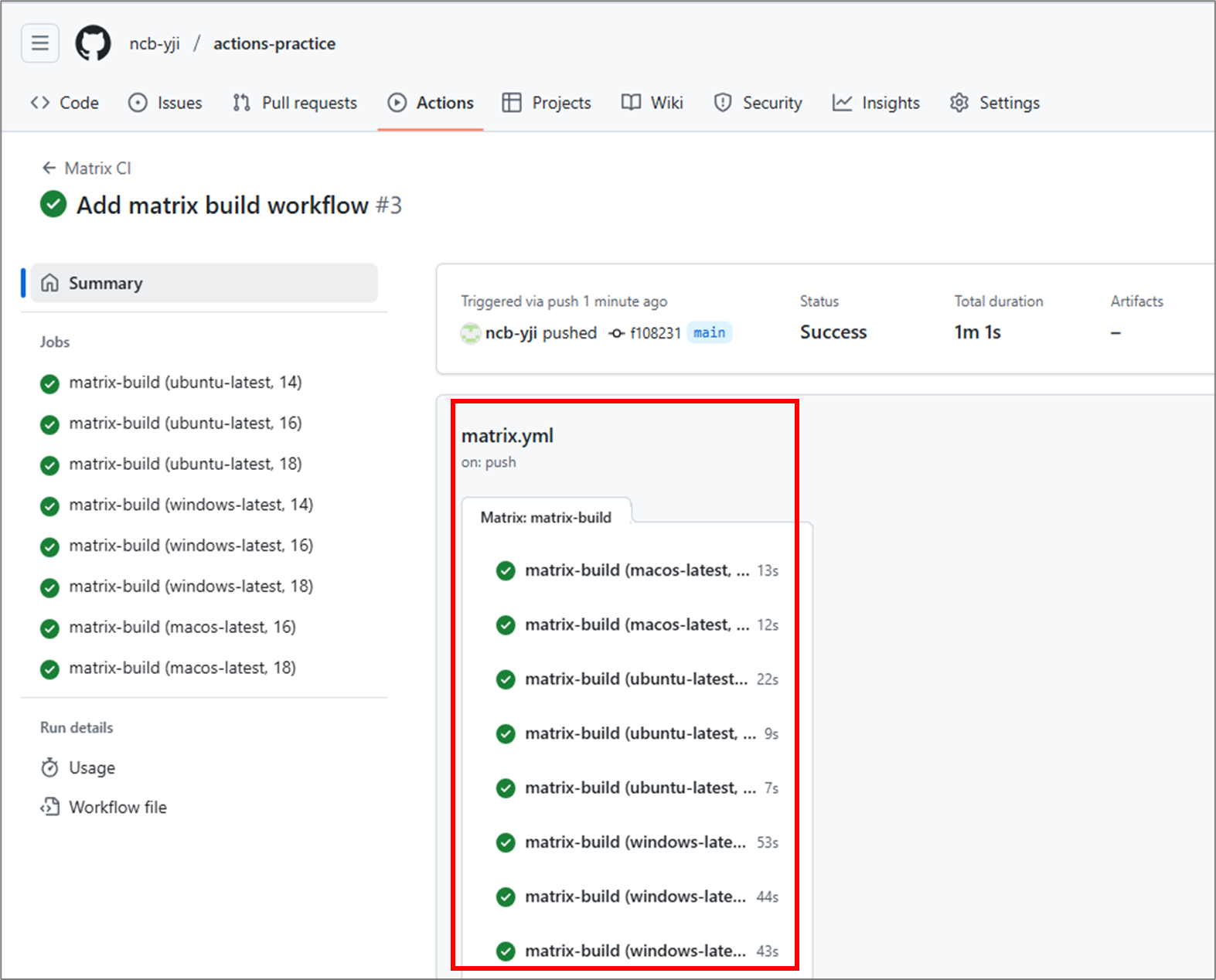
2-3. Secret 관리 및 배포
워크플로우 예제
- GitHub Secret을 이용해 AWS S3에 빌드 파일 업로드
name: Deploy to S3

on:
  push:
    branches: [ main ]

jobs:
  deploy:
    runs-on: ubuntu-latest
    steps:
      - uses: actions/checkout@v3

      - name: Install AWS CLI
        run: |
          curl "<https://awscli.amazonaws.com/awscli-exe-linux-x86_64.zip>" -o awscliv2.zip
          unzip awscliv2.zip
          sudo ./aws/install

      - name: Configure AWS credentials
        uses: aws-actions/configure-aws-credentials@v2
        with:
          aws-access-key-id: ${{ secrets.AWS_ACCESS_KEY_ID }}
          aws-secret-access-key: ${{ secrets.AWS_SECRET_ACCESS_KEY }}
          aws-region: ap-northeast-2

      - name: Sync to S3
        run: aws s3 sync ./dist s3://your-bucket-name --delete
3. 리눅스 실습 - Docker 볼륨
- Docker 볼륨과 바인드 마운트를 활용한 데이터 공유
- Named Volume, Bind Mount, Data-only 컨테이너, tmpfs 마운트를 직접 만들어 보고
- 각 방식의 특징·장단점을 체험하고 비교
- 간단한 백업·복원, 퍼미션 문제 해결까지 실습
3-1. 실습 환경 설정
- 워크디렉토리 생성
mkdir ~/docker-data-share && cd ~/docker-data-share
- 확인: Docker가 정상 동작하는지 확인
docker run --rm hello-world
3-2. Named Volume 으로 컨테이너 간 데이터 공유
- 볼륨 생성
docker volume create shared_vol
- 데이터 쓰기 컨테이너 실행
- 3초마다 타임스탬프를 /data/timestamp.txt에 기록
docker run -d --name writer \\
  -v shared_vol:/data \\
  alpine sh -c "while true; do date +%T >> /data/timestamp.txt; sleep 3; done"
- 읽기 컨테이너 실행
docker run --rm -it --name reader \\
  -v shared_vol:/data \\
  alpine sh -c "tail -n 10 /data/timestamp.txt"
- 검증: reader에 출력된 시간이 3초 간격으로 누적되어 있으면 성공
3-3. Host Bind-Mount 로 호스트 ↔ 컨테이너 데이터 공유
- 호스트 디렉토리 준비
mkdir host_data
echo "Host says hi" > host_data/greeting.txt
- 컨테이너에서 읽기
docker run --rm -it \\
  -v "$(pwd)/host_data:/mnt/data" \\
  alpine sh -c "cat /mnt/data/greeting.txt"
- 컨테이너에서 쓰기 후 호스트 확인
docker run --rm \\
  -v "$(pwd)/host_data:/mnt/data" \\
  alpine sh -c "echo 'at $(date +"%p %I:%M")' >> /mnt/data/greeting.txt"
- 호스트 터미널에서 cat host_data/greeting.txt 실행해 결과 확인
3-4. 실습 정리 및 질문
- Named Volume과 Bind Mount의 주요 차이점은?
- 실제 운영 환경에서 볼륨 백업·복원 전략을 어떻게 설계할 것인가?
(심화) 응용 실습
👉혹시나 도커라이징된 DB를 VM 위에 직접 띄우게 된다면 아래와 같은 작업을 하게 됩니다
- 블록스토리지를 추가하여 VM이 꺼져도 스토리지는 안 꺼지게 하고.
- Docker 컨테이너 볼륨과 연결해보기.
- VM이 종료되어도 데이터가 남아있는지 확인해보기.
4. 리눅스 실습 - 과제: 블루그린 배포전략 구현하기 (테라폼/깃헙액션)
👉 Terraform과 Github Action을 활용하여 블루그린 배포전략을 구현하는 과제입니다.
Kakaocloud와 Terraform 연결은 가이드가 충분하지 않아 기본 세팅을 연동해두었습니다.
(VM 1대 띄우는 예시 코드)
kakaocloud-terraform.tar.gz
블루그린(Blue-Green) 배포전략 구현하기
- Terraform을 이용해 KakaoCloud 상에 Blue/Green 환경(VM 그룹, 로드밸런서 등)을 코드로 프로비저닝
- GitHub Actions 워크플로우로 Green (혹은 Blue) 환경에 새 버전 애플리케이션을 빌드·배포하고, 성공 시 트래픽을 전환
- 헬스체크 실패 시 자동 롤백 또는 알림 기능 구현
테라폼 설치
https://developer.hashicorp.com/terraform
Terraform | HashiCorp Developer
Explore Terraform product documentation, tutorials, and examples.
developer.hashicorp.com
로드맵
1. 웹서버 준비 Python FastAPI로 아주 간단한 /hello 서버 만들기
- /hello를 호출하면 배포된 시각을 보여주는 간단한 Python FastAPI 앱 제작
1-1. 기본 패키지 설치
sudo apt update
sudo apt install -y python3-pip python3-venv
1-2. 앱 디렉토리 만들기
mkdir -p ~/app
cd ~/app
nano main.py   # 아래 코드 복붙
# app/main.py
from fastapi import FastAPI
import datetime
import os
app = FastAPI()
# 서버 시작 시, 배포된 시간 저장
DEPLOYED_AT = None
def load_deploy_time():
global DEPLOYED_AT
if os.path.exists("deploy_time.txt"):
with open("deploy_time.txt", "r") as f:
DEPLOYED_AT = f.read()
else:
now = datetime.datetime.utcnow().isoformat()
DEPLOYED_AT = now
with open("deploy_time.txt", "w") as f:
f.write(now)
load_deploy_time()
@app.get("/hello")
def hello():
return {"deployed_at": DEPLOYED_AT}
1-3. 가상환경 활성화
# 가상환경 (venv) 생성
python3 -m venv venv

# 가상환경 활성화
source venv/bin/activate

# FastAPI + Uvicorn 설치
pip install fastapi uvicorn
1-4. FasAPI 서버 실행
uvicorn main:app --host 0.0.0.0 --port 8000 --reload
1-5. 브라우저에서 접속하여 블루/그린 환경 테스트
http://<퍼블릭 IP>:8000/hello
2. FastAPI 앱을 GitHub에 올리기 (Green 환경)
2-1. requirements.txt 생성
# (venv) ubuntu@서버:~/app$ 가상환경에서 진행
pip freeze > requirements.txt
현재 venv 안에 설치된 패키지 목록을 requirements.txt로 뽑아냄.
2-2. FastAPI 앱을 GitHub에 올리기
외부환경에서 GitHub에 접근시 비밀번호는 Token을 사용한다.
Fine-grained 토큰보다는 Classic Token을 사용하길 바란다.
# (venv) ubuntu@서버:~/app$ 가상환경에서 진행
# <초기 실행시>
# git config --global user.email "you@example.com"
# git config --global user.name "Your Name"

git init
git remote add origin https://github.com/<Github 계정>/fastapi-bluegreen-demo.git
git add .
git commit -m "Initial commit"
git branch -M main
git push -u origin main
2. GitHub Actions 워크플로우 만들기
your-project/
├── app/
├── main.py
├── requirements.txt
└── .github/
    └── workflows/
        └── deploy.yml  ← GitHub Actions 워크플로우 정의용
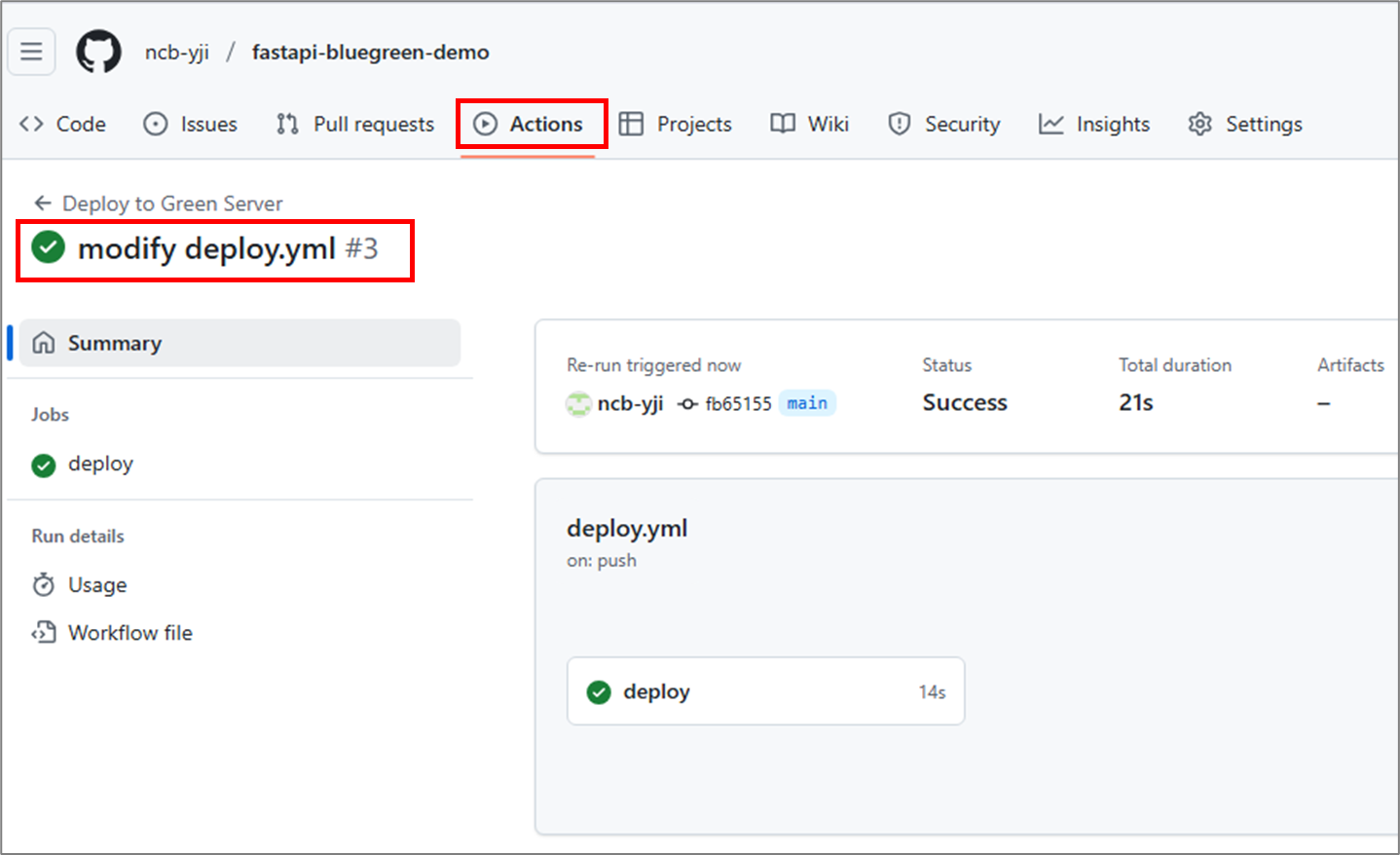
2-1. deploy.yml 파일 작성 및 push
name: Deploy to Green Server

on:
  push:
    branches:
      - main

jobs:
  deploy:
    runs-on: ubuntu-latest

    steps:
      - name: Checkout Repository
        uses: actions/checkout@v3

      - name: Set up SSH Key
        run: |
          mkdir -p ~/.ssh
          echo "${{ secrets.GREEN_SERVER_SSH_KEY }}" > ~/.ssh/id_rsa
          chmod 600 ~/.ssh/id_rsa

      - name: SSH into Green Server and deploy
        run: |
          ssh -o StrictHostKeyChecking=no ubuntu@${{ secrets.GREEN_SERVER_IP }} << 'EOF'
            cd ~/app
            git pull origin main
            source venv/bin/activate
            nohup uvicorn main:app --host 0.0.0.0 --port 8000 > server.log 2>&1 &
          EOF
git add .github/
git commit -m "Github Action Workflow 1st Commit"
git push origin main
2-2. Github에 Green서버 SSH Private Key와 서버IP 등록하기
- 저장 위치: GitHub → Settings → Secrets and variables → Actions → New repository secret
- 1. Secret Name: GREEN_SERVER_SSH_KEY
- 로컬 PC에 있는 ~/.ssh/your-key.pem 파일 내용 (개인키)을 붙여넣기
- 2. Secret Name: GREEN_SERVER_IP
- 서버 퍼블릭 IP 등록

3. GitHub Actions 워크플로우 배포 & 실행 테스트
3-1. 배포
이제 해당 GitHub에 배포를 하면 Action이 자동으로 실행될 것이다.

Green 서버 웹 브라우저 접속 확인
URL 예시: http://210.109.82.188:8000/hello
이전에 만든 FastAPI 앱이 /hello에서 배포 시각을 출력하도록 되어 있다면, 방금 워크플로우 실행 시각과 비교해서 최신으로 바뀌었는지 확인하세요.
- 예시 응답:
{"deployed_at":"2025-04-28T10:50:32.892195"}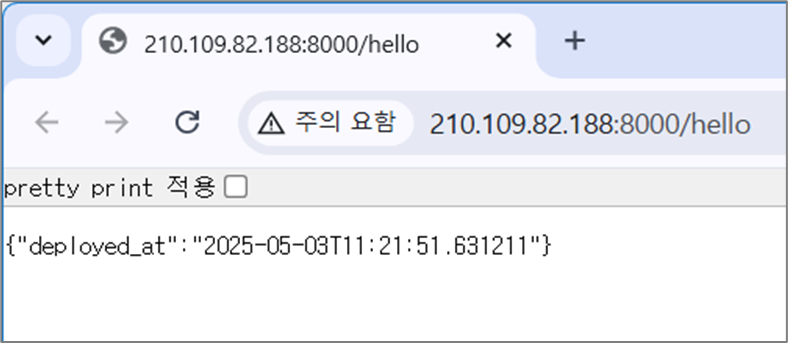
추가) Green 서버 내부 상태 확인 (선택)
직접 SSH 접속해서도 확인할 수 있습니다.
ssh ubuntu@210.109.82.188
ps aux | grep uvicorn
cat ~/app/server.log

# 서버를 강제종료할 필요가 있을 경우
# pkill -f "uvicorn main:app" || true
3. 웹 서버 블루/그린 모듈화 ~ 로드밸런서 구현
- 블루/그린 환경 모듈화하는 코드를 추가 작성
- 로드밸런서를 생성하는 코드를 추가 작성
4. 최종 테스트: 인스턴스 및 보안그룹 생성 ~ 로드밸런서 구성
1. Terraform Init-Plan-Apply를 통해 인스턴스와 보안그룹을 생성한다.
2. GitHub Action을 통해 언제 배포되었는지 알려주는 앱을 기동한다.
3. 로드 밸런싱을 통해 블루/그린 배포를 진행할 수 있게 된다.
본 후기는 [카카오엔터프라이즈x스나이퍼팩토리] 카카오클라우드로 배우는 AIaaS 마스터 클래스 (B-log) 리뷰로 작성 되었습니다.
'학습일지 > K-Digital Traing' 카테고리의 다른 글
| [KDT] AIaaS 마스터클래스 8주차 - React 학습 (0) | 2025.05.12 |
|---|---|
| [KDT] AIaaS 마스터클래스 7주차 - NC Dinos 홈페이지의 버그 고쳐보기 (0) | 2025.05.07 |
| [KDT] AIaaS 마스터클래스 5주차 - 프라이빗 서비스 인프라 구축 실습 (0) | 2025.04.25 |
| [KDT] AIaaS 마스터클래스 5주차 - 리눅스 ssh 실습 (0) | 2025.04.24 |
| [KDT] AIaaS 마스터클래스 5주차 - 리눅스 실습 (1) | 2025.04.23 |