실습1 : 쿠버네티스 서비스 및 네트워킹 실습
Minikube 환경에서 다양한 서비스 유형을 생성하고 테스트해보는 실습
1. 환경 준비 및 확인
# Minikube 상태 확인
minikube status

# 만약 실행 중이 아니라면 시작
# minikube start
2. 기본 애플리케이션 배포
- 작성 파일 (nginx-deployment.yaml)
# nginx-deployment.yaml
apiVersion: apps/v1
kind: Deployment
metadata:
  name: nginx-deployment
  labels:
    app: nginx
spec:
  replicas: 3
  selector:
    matchLabels:
      app: nginx
  template:
    metadata:
      labels:
        app: nginx
    spec:
      containers:
      - name: nginx
        image: nginx:1.19
        ports:
- containerPort: 80- 실행 커맨드
# 간단한 Nginx 디플로이먼트 생성
kubectl apply -f nginx-deployment.yaml

# 배포 확인
kubectl get deployments
kubectl get pods -l app=nginx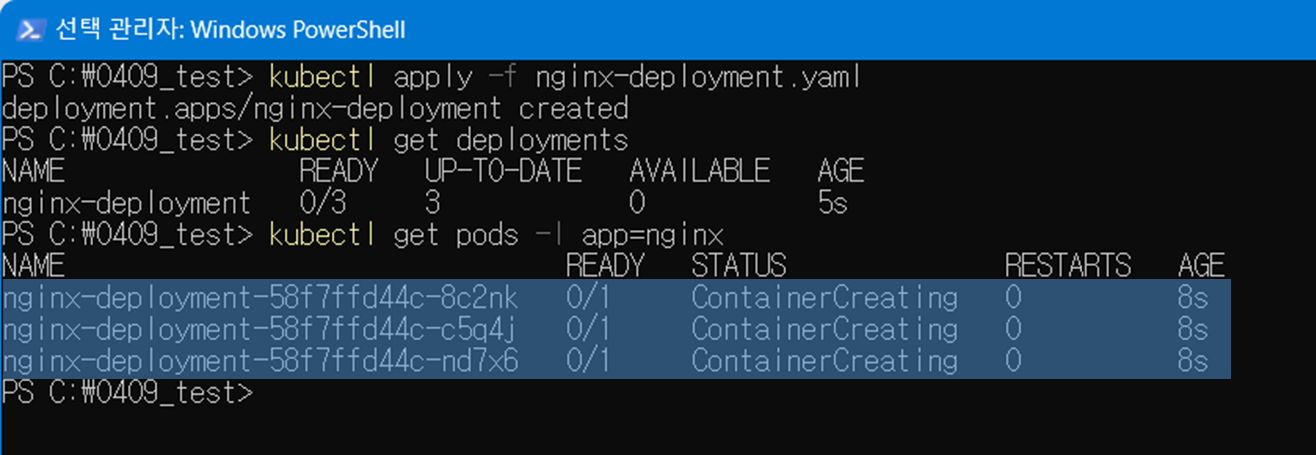
3. ClusterIP 서비스 생성 및 테스트
가장 기본적인 서비스 유형인 ClusterIP를 생성하고 테스트
- 작성 파일 (nginx-clusterip.yaml)
# nginx-clusterip.yaml
apiVersion: v1
kind: Service
metadata:
  name: nginx-clusterip
spec:
  selector:
    app: nginx
  ports:
  - port: 80
    targetPort: 80
type: ClusterIP- 실행 커맨드
# ClusterIP 서비스 생성
kubectl apply -f nginx-clusterip.yaml

# 서비스 확인
kubectl get services
kubectl describe service nginx-clusterip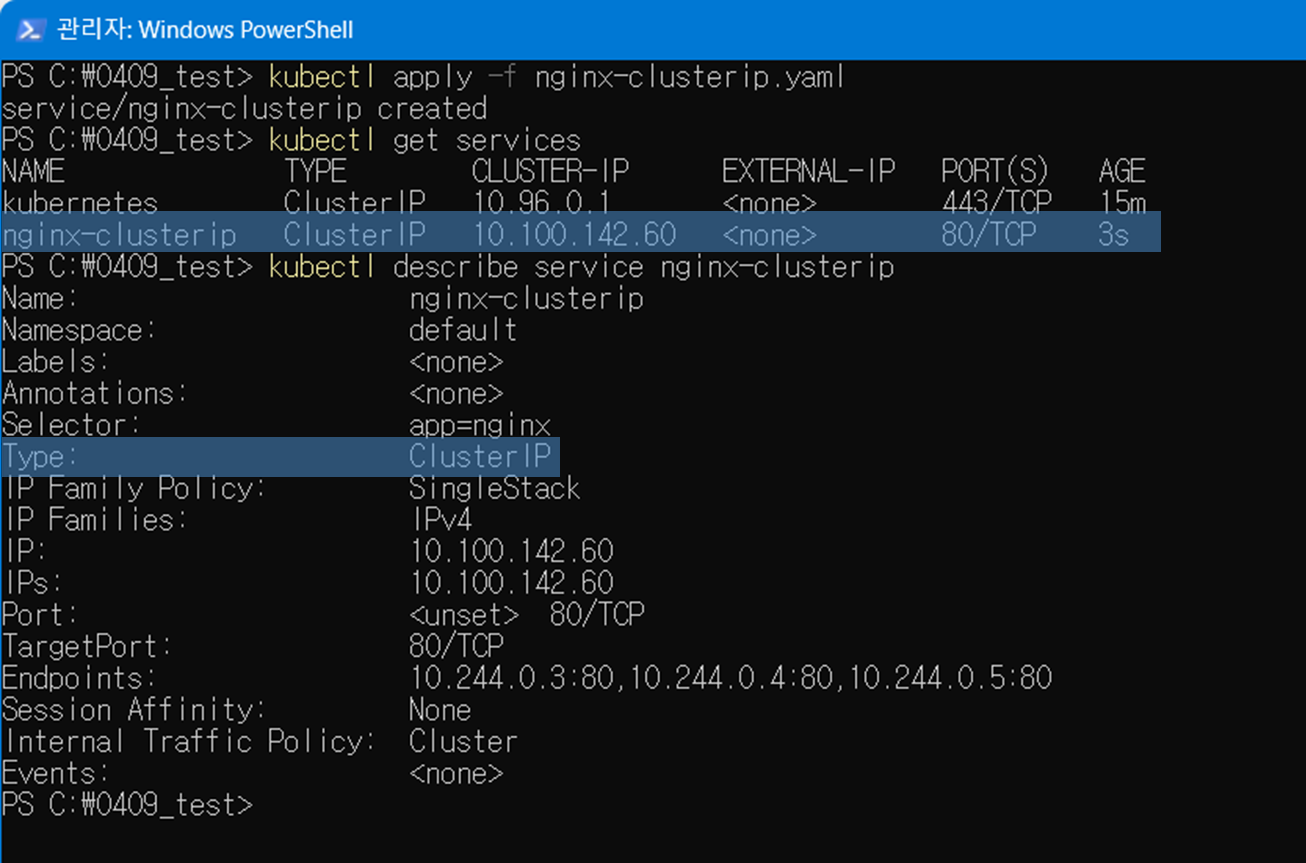
3-1. ClusterIP 서비스 생성 테스트
ClusterIP는 클러스터 내부에서만 접근 가능
임시 Pod를 생성하여 서비스에 접근해보기
# 임시 Pod를 생성하여 서비스 테스트
kubectl run -i --tty --rm debug --image=busybox:1.28 -- /bin/sh

# Pod 내부에서 서비스 접근
wget -O- nginx-clusterip
# ㄴ 서비스에 HTTP 요청 (nginx-clusterip라는 도메인으로 HTTP요청 전송): HTML, 텍스트 등 반환
nslookup nginx-clusterip
# ㄴ DNS 이름 해석 테스트 (서비스이름->IP 주소 변환되는지 확인) : IP 주소 반환
wget -O- <ClusterIP>

# Pod를 종료하려면 exit 입력
exit
3-2. Endpoint 확인
서비스가 올바르게 Pod를 가리키고 있는지 Endpoint를 확인하기
# Endpoint 확인
kubectl get endpoints nginx-clusterip

# pod가 할당하고 있는 ip 확인 비교
kubectl get pods -l app=nginx -o wide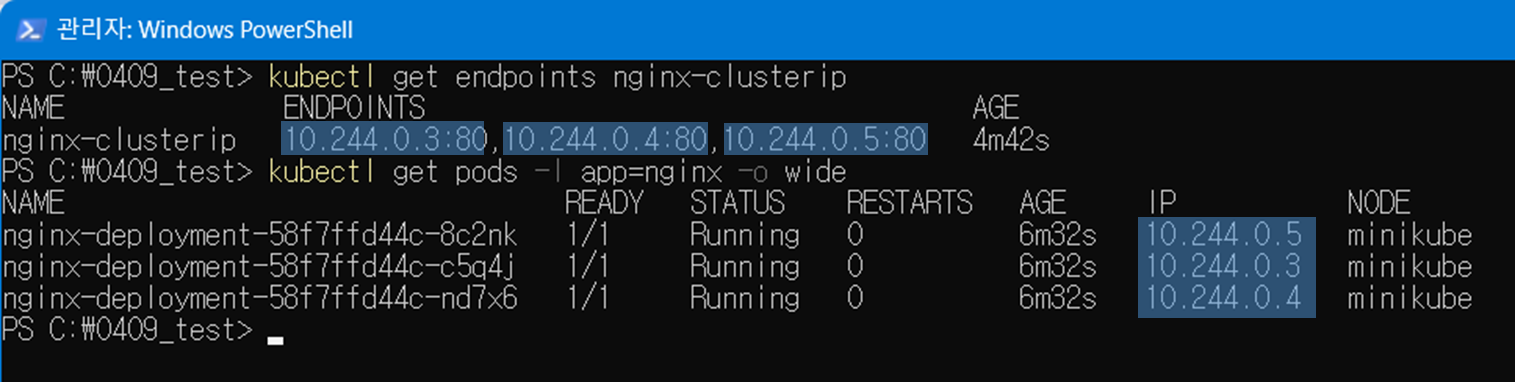
4. NodePort 서비스 생성 및 테스트
NodePort 서비스를 생성하여 클러스터 외부에서 접근
- 작성 파일 (nginx-nodeport.yaml)
# nginx-nodeport.yaml
apiVersion: v1
kind: Service
metadata:
  name: nginx-nodeport
spec:
  selector:
    app: nginx
  ports:
  - port: 80
    targetPort: 80
    nodePort: 30080
type: NodePort- 실행 커맨드
# NodePort 서비스 생성
kubectl apply -f nginx-nodeport.yaml

# 서비스 확인
kubectl get services
kubectl describe service nginx-nodeport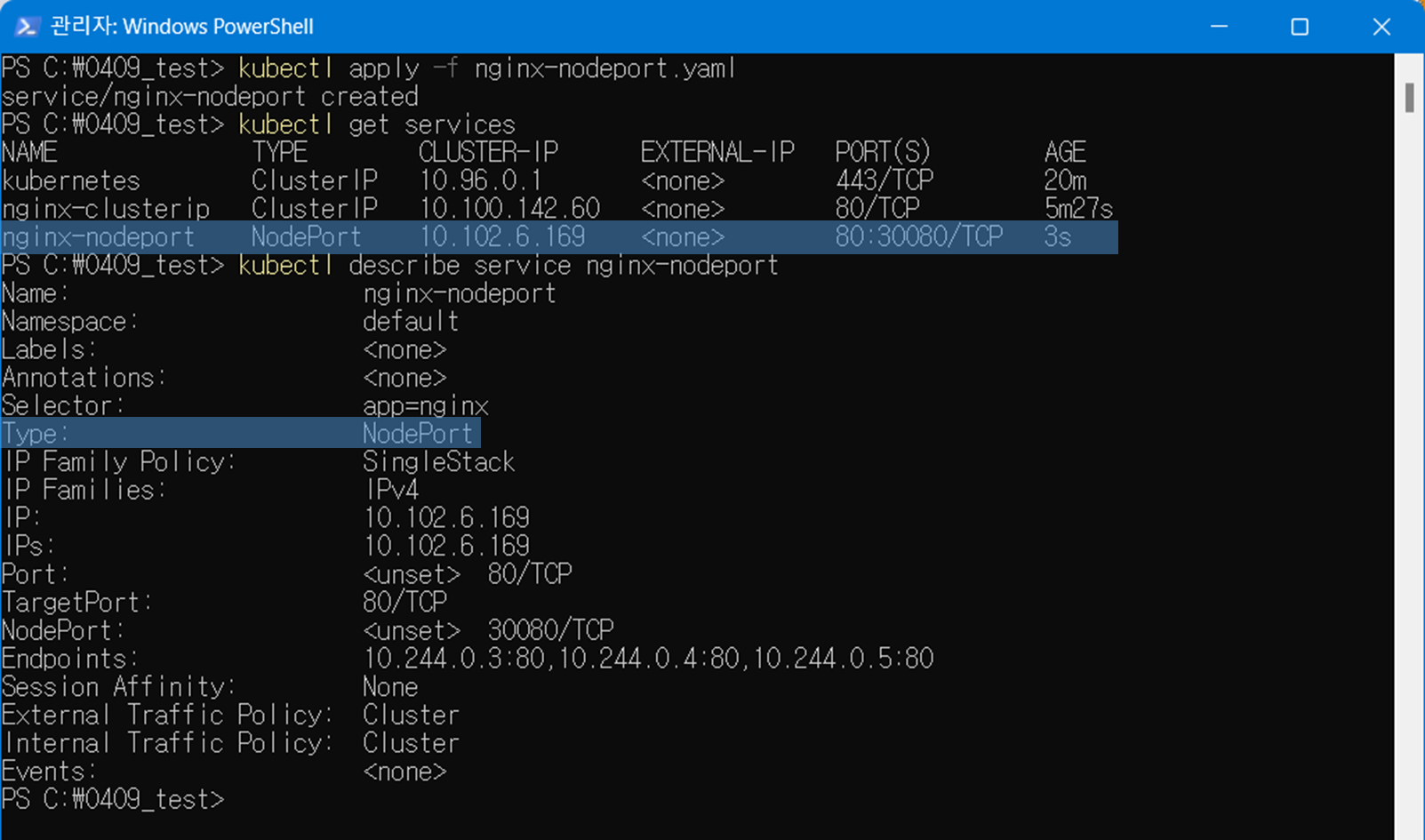
4-1. NodePort 서비스 테스트
# Minikube에서 NodePort 서비스 URL 확인
minikube service nginx-nodeport --url
# or
# 브라우저에서 URL 열기
minikube service nginx-nodeport

# 또는 curl 명령으로 테스트
curl $(url)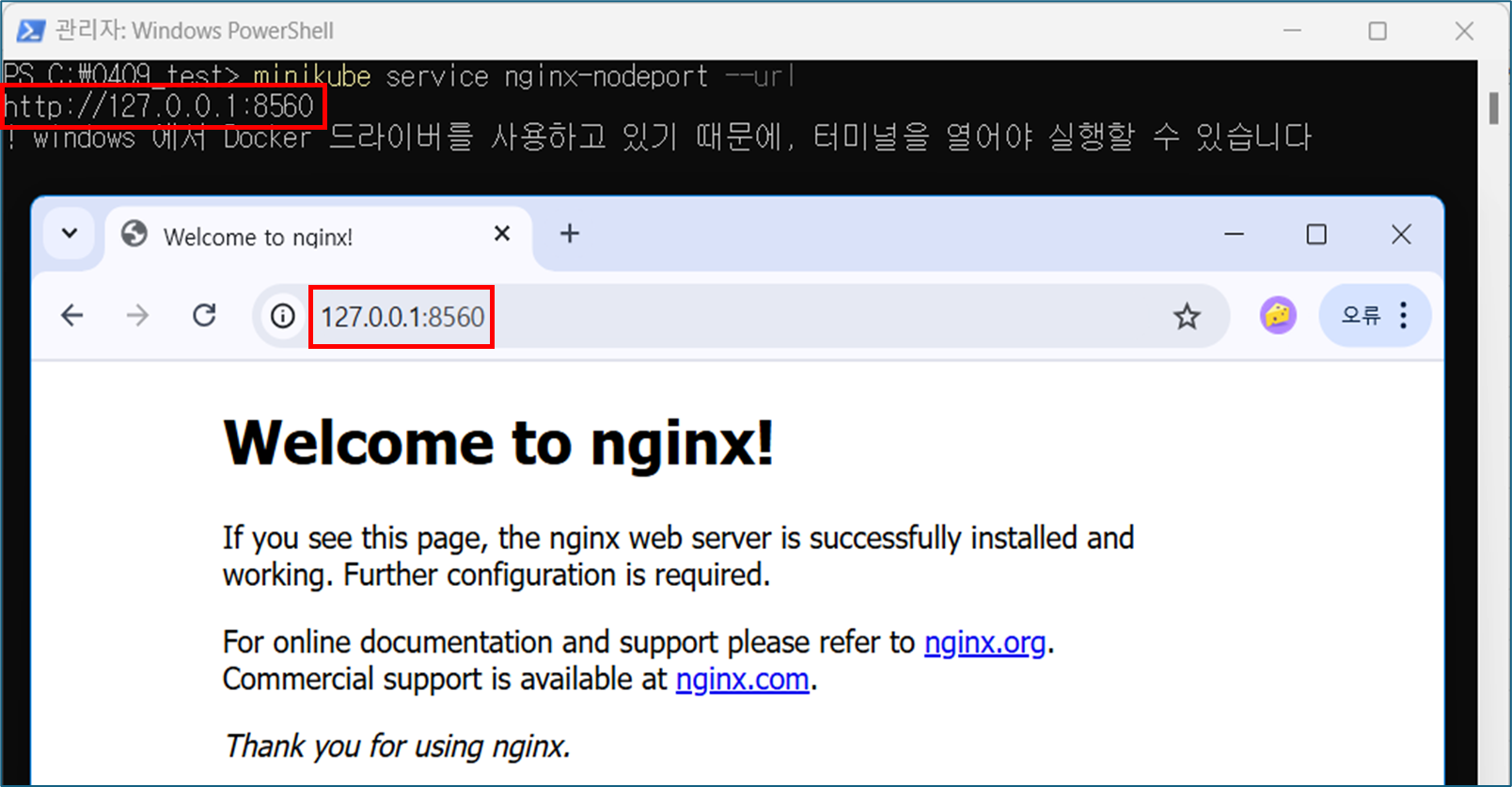
5. LoadBalancer 서비스 생성 및 테스트
LoadBalancer 서비스를 생성하고 Minikube tunnel을 사용하여 테스트
- 작성 파일 (nginx-loadbalancer.yaml)
# nginx-loadbalancer.yaml
apiVersion: v1
kind: Service
metadata:
  name: nginx-loadbalancer
spec:
  selector:
    app: nginx
  ports:
  - port: 80
    targetPort: 80
type: LoadBalancer- 실행 커맨드
# LoadBalancer 서비스 생성
kubectl apply -f nginx-loadbalancer.yaml

# 서비스 확인
kubectl get services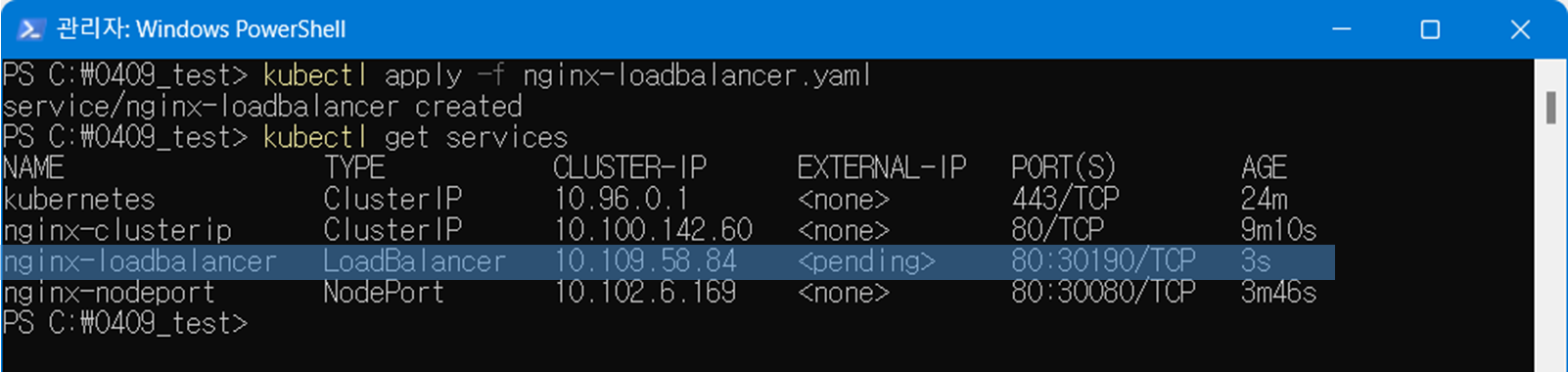
Minikube tunnel을 사용한 외부 접근
Minikube에서 LoadBalancer 타입의 서비스를 사용하려면 minikube tunnel 명령을 실행해야 함
# 새 터미널에서 minikube tunnel 실행
# minikube tunnel
# > 본인 pc의 관리자 비밀번호 입력

# 터미널이 하나만 있다면 백그라운드로 실행
minikube tunnel &

# EXTERNAL-IP 확인
kubectl get service nginx-loadbalancer

# 브라우저 또는 curl로 접근
# external ip인 척을 해봅시다 ㅜㅜ minikube 에서만 !
curl http://127.0.0.1

# 실제 프로덕션에서는 Public IP로서 CSP로부터 부여받는 외부 접근 가능한 IP! Minikube에서는 결국 내부망에서의 로컬이지만 LoadBalancer를 사용해보기 위해 터널링 개념으로 도입

# LoadBalancer 타입의 서비스는 내부적으로 NodePort 타입의 서비스를 생성한 다음, 그 위에 로드 밸런서를 추가로 구성! 따라서 LoadBalancer 서비스는 자동으로 비어있는 NodePort도 함께 할당!!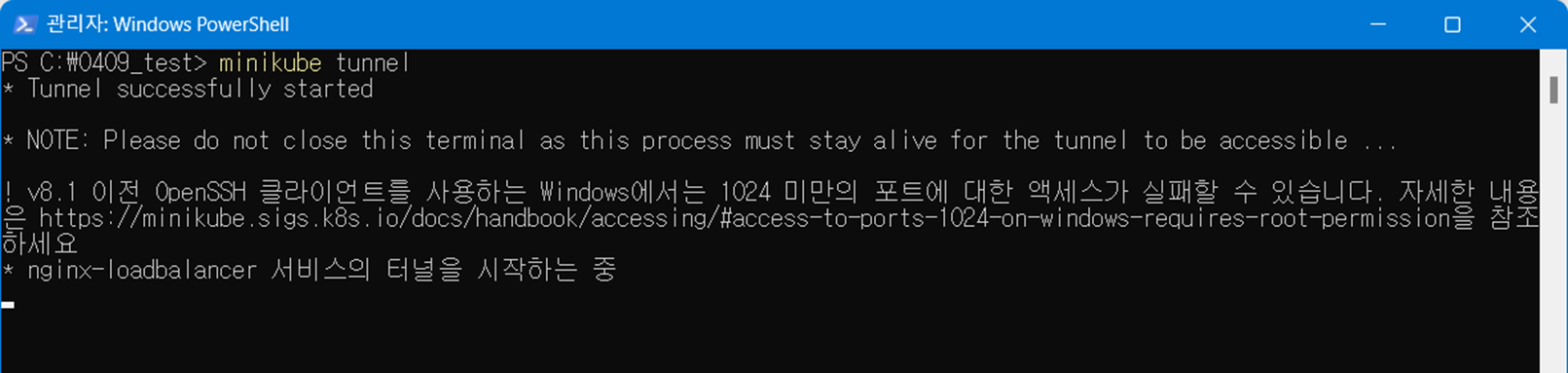

6. 서비스 디스커버리 실습
다른 Pod가 서비스를 어떻게 발견하고 통신하는지
(DNS 이름만으로 같은 클러스터 내 다른 서비스(Pod 또는 Service)에 접근할 수 있는지 테스트)
| 구성 요소 | 설명 |
| curl-deployment | 클라이언트 역할을 하는 Pod (curl 명령 사용) |
| nginx-clusterip | 사전에 배포된 웹 서버 서비스 (ClusterIP 타입 예상) |
- 작성 파일 (curl-deployment.yaml)
# curl-deployment
apiVersion: apps/v1
kind: Deployment
metadata:
  name: curl-deployment
  labels:
    app: curl
spec:
  replicas: 1
  selector:
    matchLabels:
      app: curl
  template:
    metadata:
      labels:
        app: curl
    spec:
      containers:
      - name: curl
        image: curlimages/curl
command: ["sleep", "3600"]- 실행 커맨드
# 두 번째 애플리케이션 배포 (클라이언트 역할)
kubectl apply -f curl-deployment.yaml

# 배포된 Pod 확인
kubectl get pods -l app=curl

# 클라이언트 Pod 이름 가져오기 Window
$CURL_POD = kubectl get pods -l app=curl -o jsonpath='{.items[0].metadata.name}'

# 클라이언트 Pod 이름 가져오기 Mac
# CURL_POD=$(kubectl get pods -l app=curl -o jsonpath='{.items[0].metadata.name}')

# 서비스 디스커버리 테스트 (DNS 이름으로 접근) Window
kubectl exec $CURL_POD -- curl http://nginx-clusterip

# 서비스 디스커버리 테스트 (DNS 이름으로 접근) Mac
# kubectl exec -it $CURL_POD -- curl -s nginx-clusterip

# DNS 조회 테스트
kubectl exec -it $CURL_POD -- nslookup nginx-clusterip
# --- 해당 내용에서 Address가 나타나는 내역이 있을 것임. 명령이 성공한 내용
# Name:	nginx-clusterip.default.svc.cluster.local
# Address: 10.97.66.5

# ** server can't find nginx-clusterip.cluster.local: NXDOMAIN ... <- 다른 것 신경쓰지 말기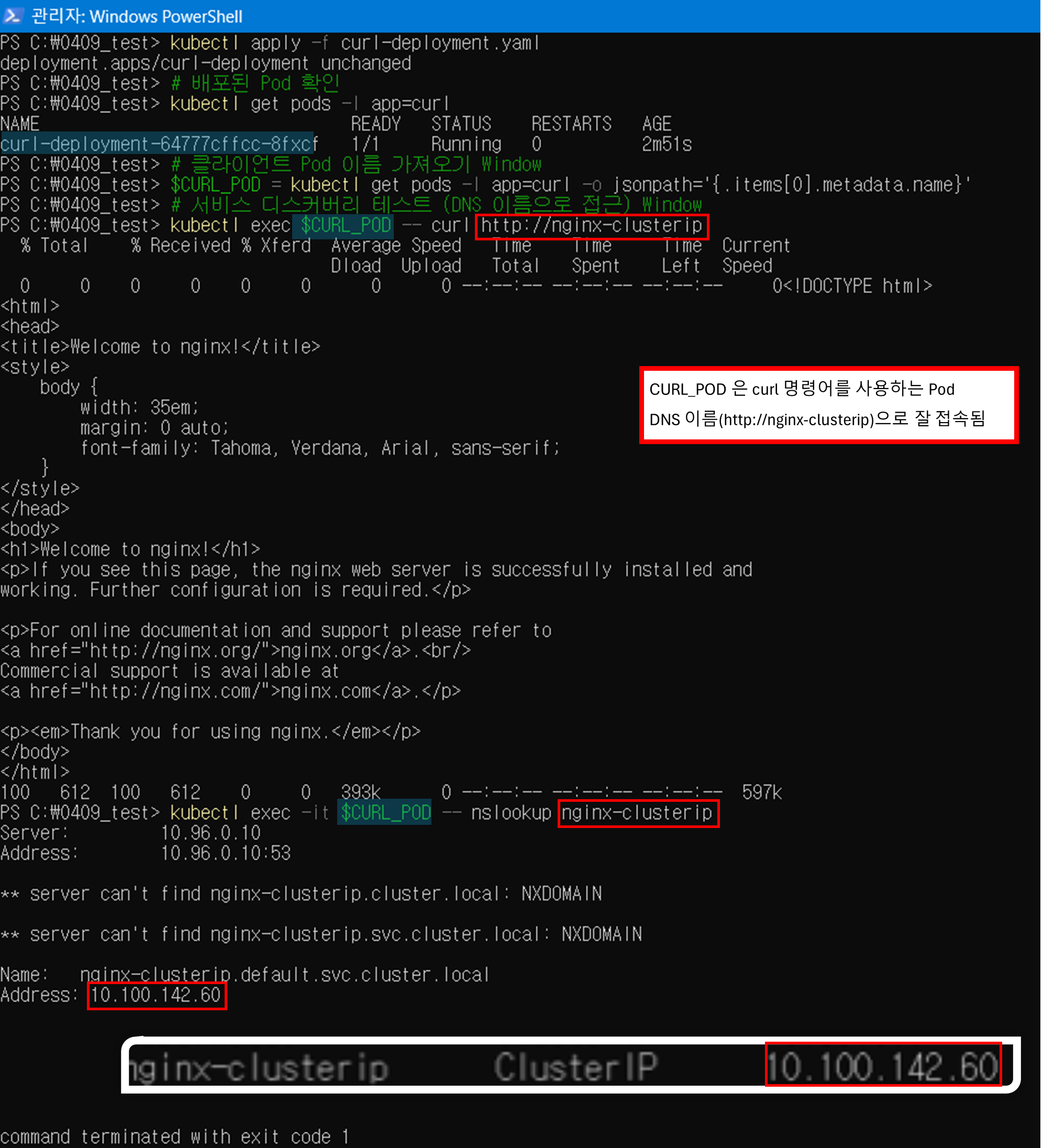
7. 서비스 간 통신 실습 (6번과 동일)
두 서비스 간의 통신을 테스트해보겠습니다.
- 작성 파일 (curl-service.yaml)
# curl-service.yaml
apiVersion: v1
kind: Service
metadata:
  name: curl-service
spec:
  selector:
    app: curl
  ports:
  - port: 80
    targetPort: 80
type: ClusterIP- 실행 커맨드
# 두 번째 서비스 생성 (curl 서비스)
kubectl apply -f curl-service.yaml

# curl Pod에서 nginx 서비스로 요청 보내기
kubectl exec -it $CURL_POD -- curl -s nginx-clusterip

# DNS 조회 테스트
kubectl exec -it $CURL_POD -- nslookup nginx-clusterip

# 환경 변수를 통한 서비스 연결 리스트 확인 Windows
kubectl exec $CURL_POD -- env | Select-String "NGINX"

# 환경 변수를 통한 서비스 연결 리스트 확인 Mac
# kubectl exec -it $CURL_POD -- env | grep NGINX
8. 서비스 설정 변경 및 테스트
서비스 설정을 변경하고 그 영향을 관찰
# 서비스 포트 변경 Windows
kubectl patch service nginx-clusterip --type=merge -p '{\"spec\":{\"ports\":[{\"port\":8080,\"targetPort\":80}]}}'

# 서비스 포트 변경 Mac
# kubectl patch service nginx-clusterip -p '{"spec":{"ports":[{"port":8080,"targetPort":80}]}}'

# 변경 사항 확인
kubectl describe service nginx-clusterip

# 변경된 포트로 접근
kubectl exec -it $CURL_POD -- curl -s nginx-clusterip:8080
# 성공

# 기존 포트로 다시 테스트
kubectl exec -it $CURL_POD -- curl -s nginx-clusterip:80
# 대기 이후 실패! 대부분 바로 안뜨면 실패하는거임 Ctrl + C로 나가는 것이 시간 절약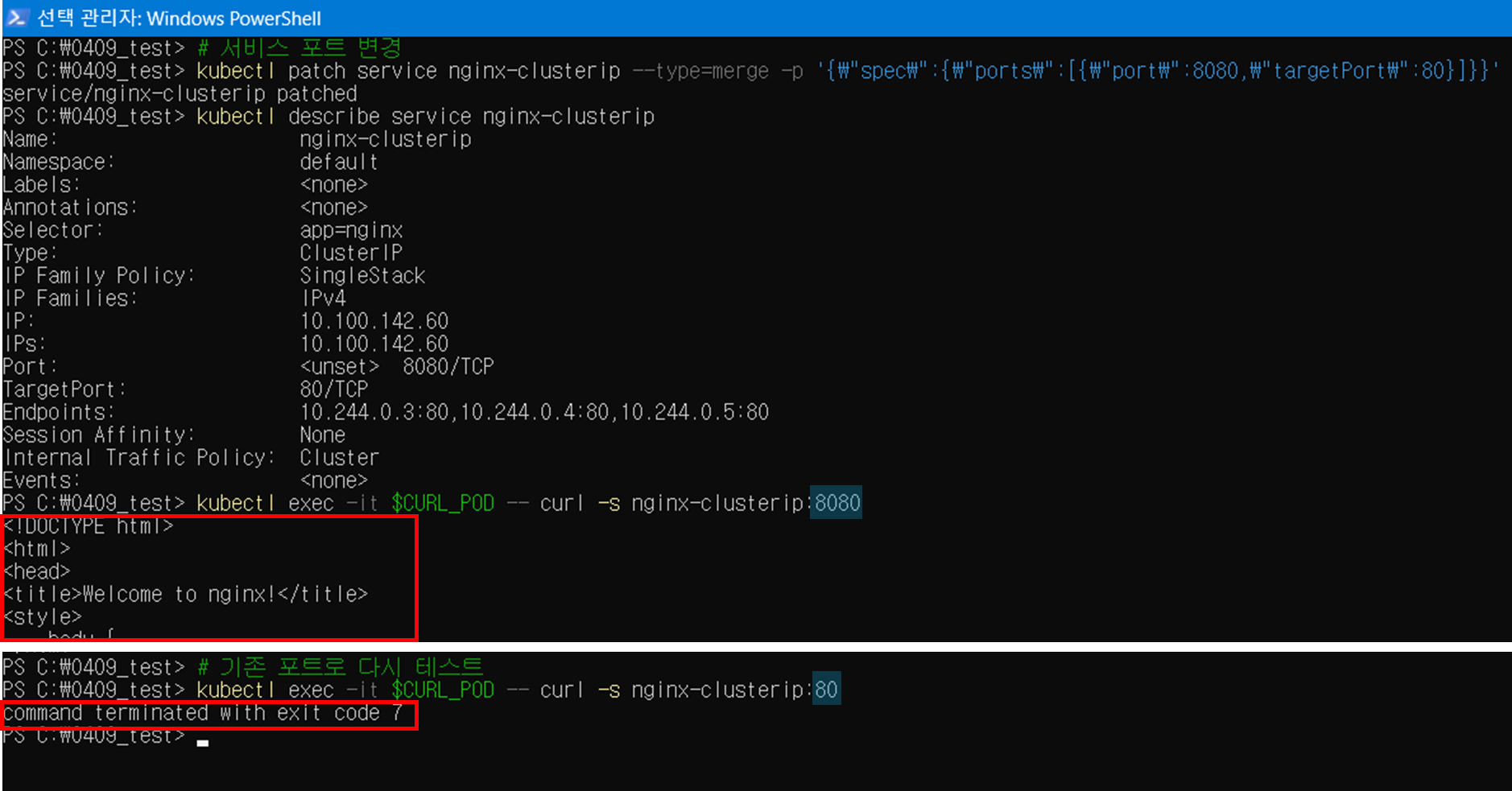
9. 라벨 변경을 통한 서비스 대상 변경
app=nginx 라벨을 가진 Pod 중 하나의 라벨을 완전히 다른 걸로 바꾸면 서비스 선택자가 어떻게 동작하는지 살펴보기
# [일부 Pod의 라벨 변경] app=nginx 라벨을 가진 Pod 중 하나를 선택해서 라벨을 app=nginx2로 바꿔버리는 명령
kubectl label pod $(kubectl get pods -l app=nginx -o jsonpath='{.items[0].metadata.name}') app=nginx2 --overwrite

# Endpoint 변화 확인
kubectl get endpoints nginx-clusterip

# 남은 Pod 수 확인
kubectl get pods -l app=nginx

# nginx-deployment-58f7ffd44c-8c2nk 파드는 존재는 하지만, 서비스가 관리하는 EP 대상에서는 제외 되었다!
# 하지만 deployment가 바로, replica를 유지하기 위해서tofhqrp 10.244.0.8의 IP를 가지는 Pod를 새로 배포한 모습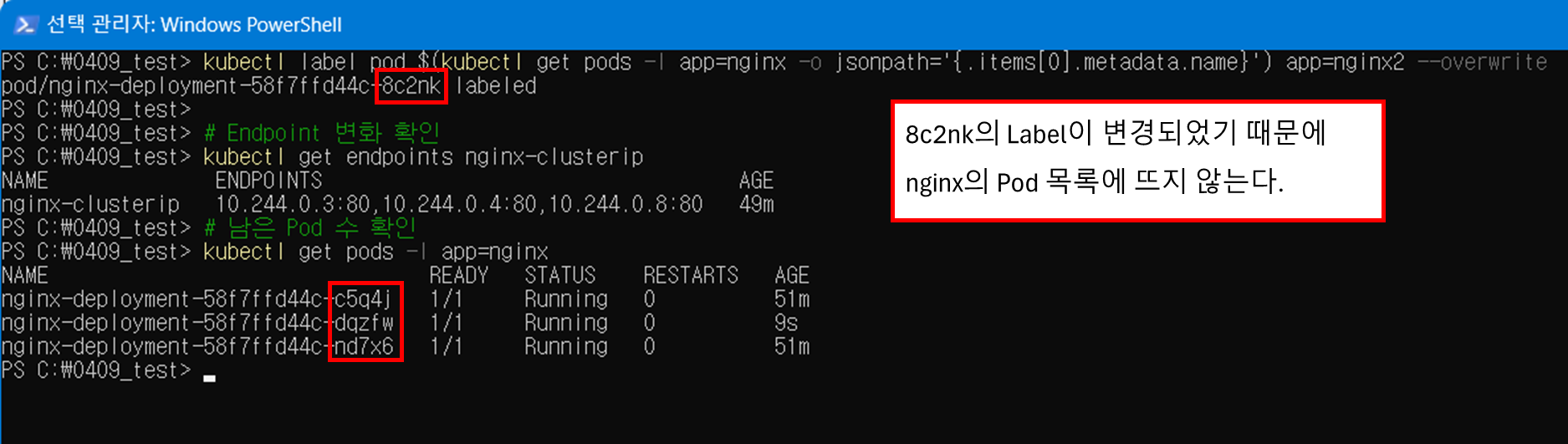
10. 서비스 삭제 및 정리
# 서비스 삭제
kubectl delete service nginx-clusterip nginx-nodeport nginx-loadbalancer curl-service

# 배포 삭제
kubectl delete deployment nginx-deployment curl-deployment

# minikube tunnel이 백그라운드로 실행 중이라면 종료 Windows
Get-Process minikube | Stop-Process -Force

# minikube tunnel이 백그라운드로 실행 중이라면 종료 Mac
# pkill -f "minikube tunnel"
11. StatefulSet + Headless 서비스
11-1. 헤드리스 서비스 생성 및 테스트
헤드리스 서비스는 ClusterIP가 없는 서비스로, DNS 레코드만 제공
- 작성 파일 ( web.yaml, nginx-headless.yaml )
1. web.yaml
# web.yaml
apiVersion: apps/v1
kind: StatefulSet
metadata:
  name: web
spec:
  serviceName: "nginx-headless"
  replicas: 3
  selector:
    matchLabels:
      app: nginx-stateful
  template:
    metadata:
      labels:
        app: nginx-stateful
    spec:
      containers:
      - name: nginx
        image: nginx:1.19
        ports:
        - containerPort: 80
          name: web
2. nginx-headless.yaml
# nginx-headless.yaml
apiVersion: v1
kind: Service
metadata:
  name: nginx-headless
spec:
  selector:
    app: nginx-stateful
  ports:
  - port: 80
    targetPort: 80
clusterIP: None- 실행 커맨드
# 헤드리스 서비스 생성을 위한 애플리케이션 배포
kubectl apply -f web.yaml

# 헤드리스 서비스 생성
kubectl apply -f nginx-headless.yaml

# 임시 Pod를 생성하여 서비스 테스트
kubectl run -i --tty --rm debug --image=busybox:1.28 -- /bin/sh

# > 파드 내부 터미널에서 입력
# DNS 레코드 확인
nslookup nginx-headless

# 개별 Pod DNS 레코드 확인 0, 1, 2 다 해보기
nslookup web-0.nginx-headless

# Pod를 종료하려면 exit 입력 -> 자동 파드 삭제 됨 --rm 플래그!
exit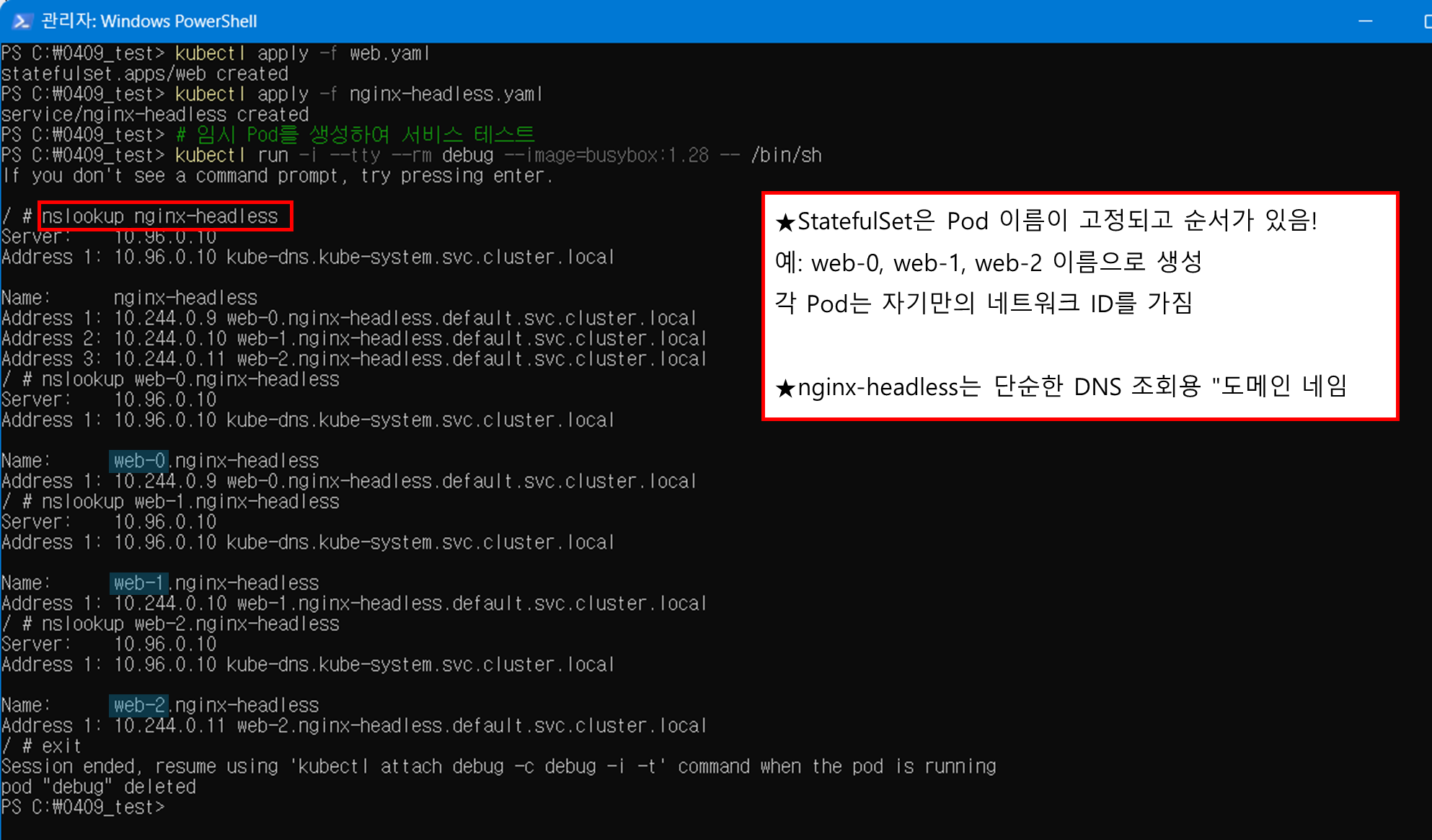
11-2. 정리
kubectl delete service nginx-headless
kubectl delete statefulset web
실습2 : Ingress 실습
Minikube 환경에서 Ingress 컨트롤러를 활성화하고 다양한 Ingress 리소스를 구성하는 실습
1. Minikube Ingress 컨트롤러 활성화
Minikube에서는 NGINX Ingress Controller를 애드온으로 쉽게 활성화할 수 있다.
# Minikube Ingress 애드온 활성화
minikube addons enable ingress

# 애드온이 성공적으로 활성화되었는지 확인
minikube addons list
Ingress 컨트롤러가 배포되고 실행될 때까지 기다리기
# Ingress 컨트롤러 Pod가 Running 상태인지 확인
kubectl get pods -n ingress-nginx

# Job으로 일회성으로 nginx ingress controller 설치를 위한 pod 배포 종류 확인
kubectl get job -n ingress-nginx

# nginx ingress controller 사용을 위한 Deployment 확인
kubectl get deployment -n ingress-nginx
성공적으로 실행되면 controller-xxx-xxx 이름의 Pod가 Running 상태로 표시된다.

2. 테스트 애플리케이션 배포
Ingress 규칙을 테스트하기 위해 서로 다른 두 개의 애플리케이션을 배포
2.1. 첫 번째 애플리케이션 (Hello)
- 작성 파일 (hello-app.yaml, hello-service.yaml)
1. hello-app.yaml
# hello-app.yaml
apiVersion: apps/v1
kind: Deployment
metadata:
  name: hello-app
spec:
  replicas: 2
  selector:
    matchLabels:
      app: hello
  template:
    metadata:
      labels:
        app: hello
    spec:
      containers:
      - name: hello
        image: gcr.io/google-samples/hello-app:1.0
        ports:
        - containerPort: 8080
2. hello-service.yaml
# hello-service.yaml
apiVersion: v1
kind: Service
metadata:
  name: hello-service
spec:
  selector:
    app: hello
  ports:
  - port: 80
    targetPort: 8080
- 실행 커맨드
# Hello 애플리케이션 Deployment 생성
kubectl apply -f hello-app.yaml

# Hello 애플리케이션 Service 생성
# 따로 type을 지정하지 않으면 자동으로 ClusterIP 배정 !
kubectl apply -f hello-service.yaml
2.2. 두 번째 애플리케이션 (Web)
- 작성 파일 (web-app.yaml, web-service.yaml)
1. web-app.yaml
# web-app.yaml
apiVersion: apps/v1
kind: Deployment
metadata:
  name: web-app
spec:
  replicas: 2
  selector:
    matchLabels:
      app: web
  template:
    metadata:
      labels:
        app: web
    spec:
      containers:
      - name: nginx
        image: nginx:1.19
        ports:
        - containerPort: 80
        volumeMounts:
        - name: html-volume
          mountPath: /usr/share/nginx/html
      initContainers:
      - name: init-html
        image: busybox:1.28
        command: ["/bin/sh", "-c", "echo '<h1>Welcome to the Web App</h1><p>This is served by NGINX.</p>' > /html/index.html"]
        volumeMounts:
        - name: html-volume
          mountPath: /html
      volumes:
      - name: html-volume
        emptyDir: {}
2. web-service.yaml
# web-service.yaml
apiVersion: v1
kind: Service
metadata:
  name: web-service
spec:
  selector:
    app: web
  ports:
  - port: 80
targetPort: 80- 실행 커맨드
# Web 애플리케이션 Deployment 생성
kubectl apply -f web-app.yaml

# Web 애플리케이션 Service 생성
kubectl apply -f web-service.yaml
2.3. 배포 확인
# Deployment와 Pod 확인
kubectl get deployments
kubectl get pods

# Service 확인
kubectl get services
3. 기본 Ingress 리소스 생성
- 작성 파일 (basic-ingress.yaml)
# basic-ingress.yaml
apiVersion: networking.k8s.io/v1
kind: Ingress
metadata:
  name: basic-ingress
spec:
  rules:
  - http:
      paths:
      - path: /
        pathType: Prefix
        backend:
          service:
            name: hello-service
            port:
number: 80- 실행 커맨드
# 기본 Ingress 생성
kubectl apply -f basic-ingress.yaml

# Ingress 리소스 확인
kubectl get ingress
kubectl describe ingress basic-ingress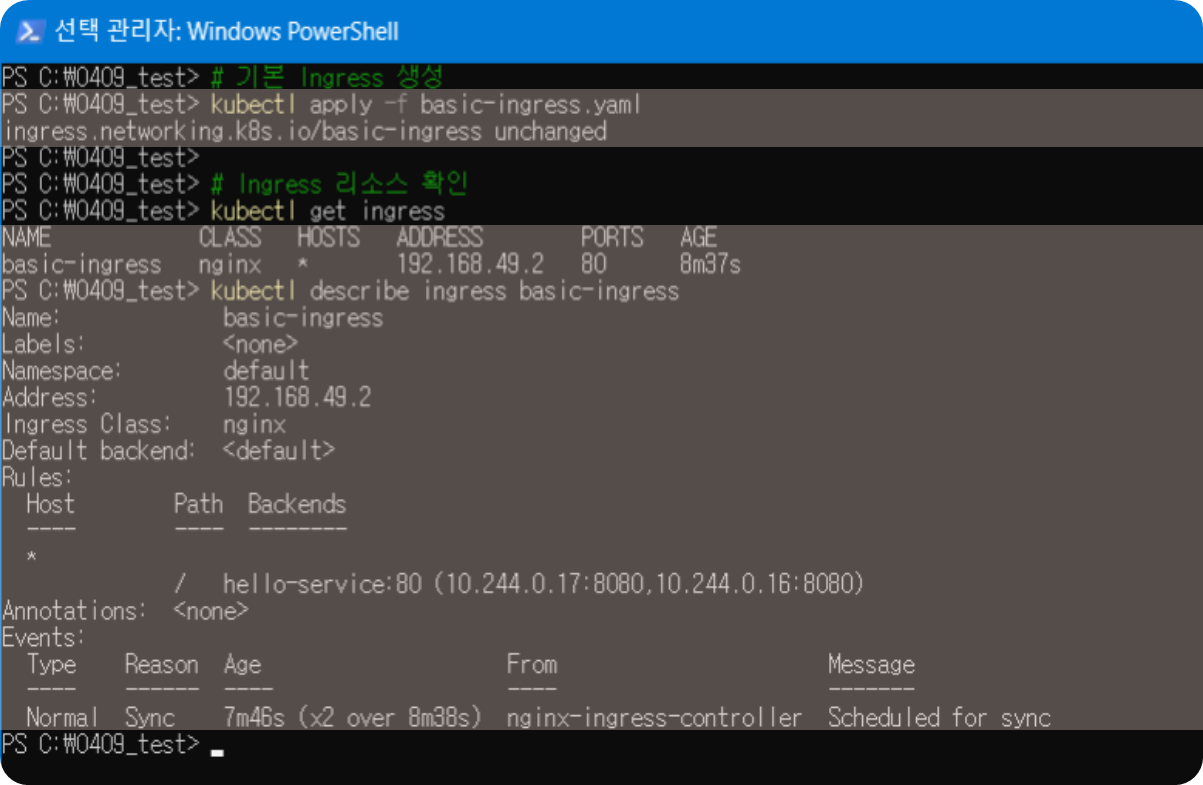
3.1. Ingress 테스트
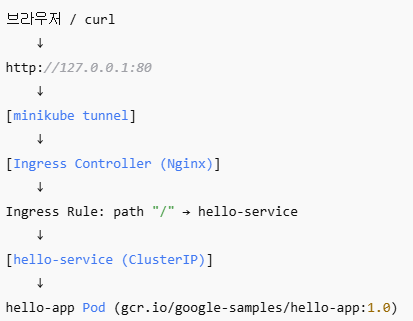
# 브라우저나 curl을 사용하여 minikube tunnel로 열어둔 로컬호스트로 테스트
# 로컬호스트가 즉 public ip처럼 되도록 minikube tunnel작업을 실행한거임.
curl http://127.0.0.1:80
※ minikube tunnel 을 안열어놨다면 열어두기
클라우드 환경에서는 LoadBalancer를 열면 진짜 퍼블릭 IP를 얻지만,
로컬 Minikube에서는 minikube tunnel이 그 역할을 흉내내준다.

4. 경로 기반 라우팅 Ingress 구성
이제 URL 경로에 따라 다른 서비스로 라우팅하는 Ingress를 구성해보자
- 작성 파일 (path-based-ingress.yaml)
# path-based-ingress.yaml
apiVersion: networking.k8s.io/v1
kind: Ingress
metadata:
  name: path-based-ingress
  annotations:
    nginx.ingress.kubernetes.io/rewrite-target: /
spec:
  rules:
  - http:
      paths:
      - path: /hello
        pathType: Prefix
        backend:
          service:
            name: hello-service
            port:
              number: 80
      - path: /web
        pathType: Prefix
        backend:
          service:
            name: web-service
            port:
number: 80- 실행 커맨드
# 기존 Ingress 삭제
kubectl delete ingress basic-ingress

# 경로 기반 라우팅 Ingress 생성
kubectl apply -f path-based-ingress.yaml

# Ingress 확인
kubectl get ingress
kubectl describe ingress path-based-ingress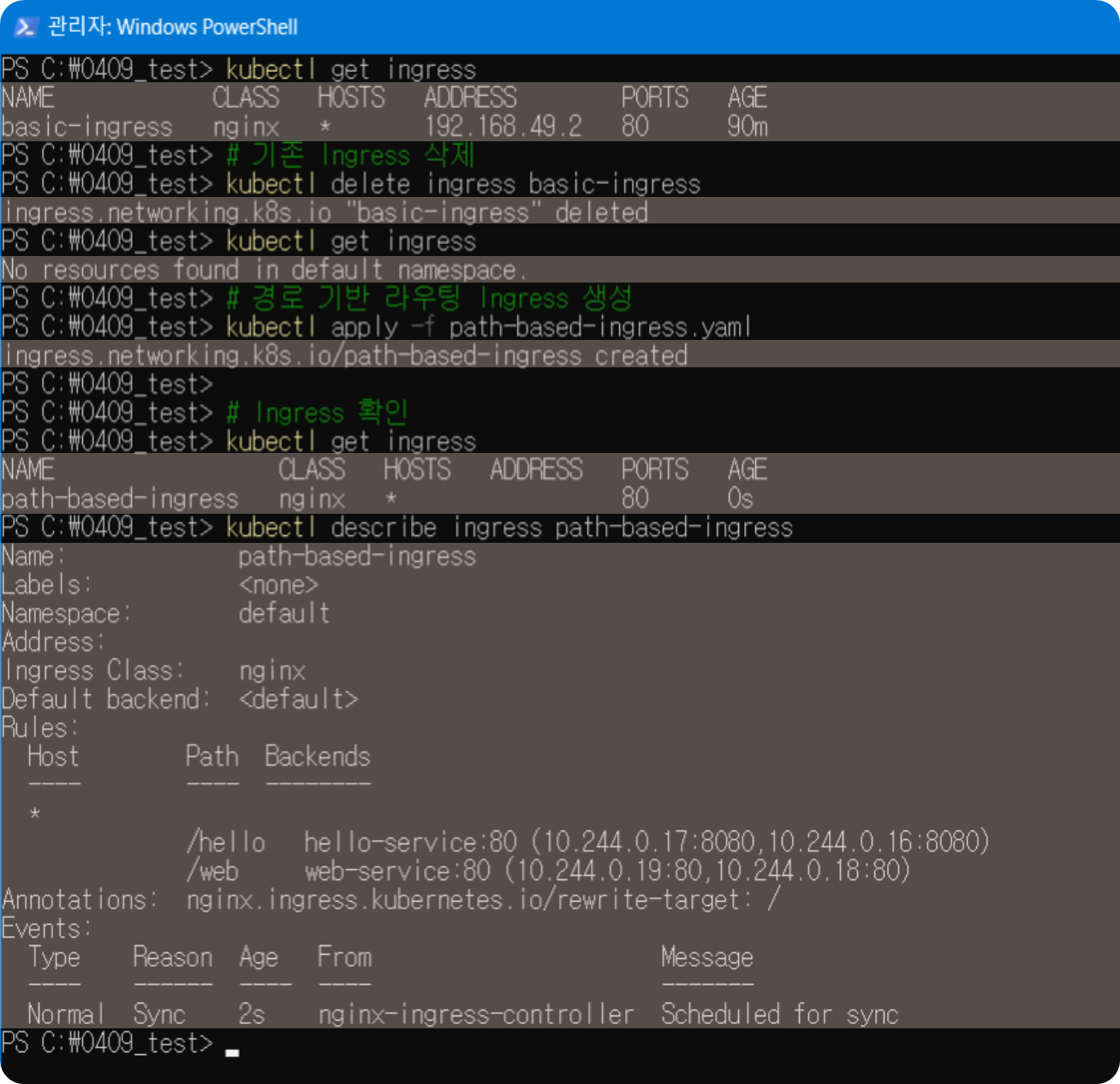
4.1. 경로 기반 라우팅 테스트
# 다른 경로로 요청 테스트
echo "Hello App URL: http://127.0.0.1/hello"
echo "Web App URL: http://127.0.0.1/web"

# curl로 테스트
curl "http://127.0.0.1/hello"
curl "http://127.0.0.1/web"
5. 호스트 기반 라우팅 Ingress 구성
이제 호스트 이름에 따라 다른 서비스로 라우팅하는 Ingress를 구성해보자
- 작성 파일 (host-based-ingress.yaml)
# host-based-ingress.yaml
apiVersion: networking.k8s.io/v1
kind: Ingress
metadata:
  name: host-based-ingress
spec:
  rules:
  - host: hello.example.com
    http:
      paths:
      - path: /
        pathType: Prefix
        backend:
          service:
            name: hello-service
            port:
              number: 80
  - host: web.example.com
    http:
      paths:
      - path: /
        pathType: Prefix
        backend:
          service:
            name: web-service
            port:
number: 80- 실행 커맨드
# 호스트 기반 라우팅 Ingress 생성
kubectl apply -f host-based-ingress.yaml

# Ingress 확인
kubectl get ingress
kubectl describe ingress host-based-ingress
5.1. 호스트 기반 라우팅 테스트
로컬 테스트를 위해 /etc/hosts 파일을 수정하거나, curl 명령어에 --header 옵션을 사용하여 테스트할 수 있음
sudo nano /etc/hosts

##
# Host Database
#
# localhost is used to configure the loopback interface
# when the system is booting.  Do not change this entry.
##
127.0.0.1       localhost
255.255.255.255 broadcasthost
::1             localhost
127.0.0.1 hello.example.com
127.0.0.1 web.example.com
# curl에 Host 헤더를 추가하여 테스트
curl.exe -H "Host: hello.example.com" "http://127.0.0.1/"
curl.exe -H "Host: web.example.com" "http://127.0.0.1/"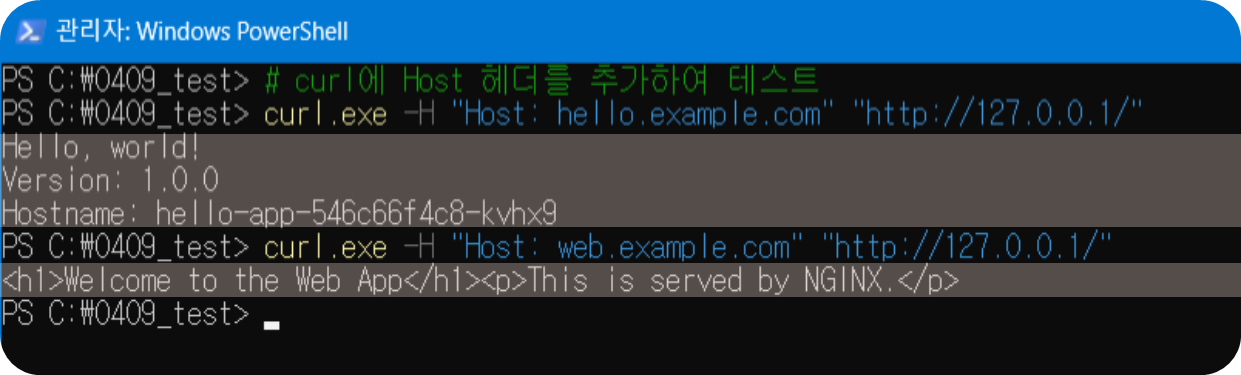
6. TLS 인증서를 사용한 Ingress 구성
이제 TLS 인증서를 사용하여 HTTPS를 지원하는 Ingress를 구성
6.1. 자체 서명 인증서 생성
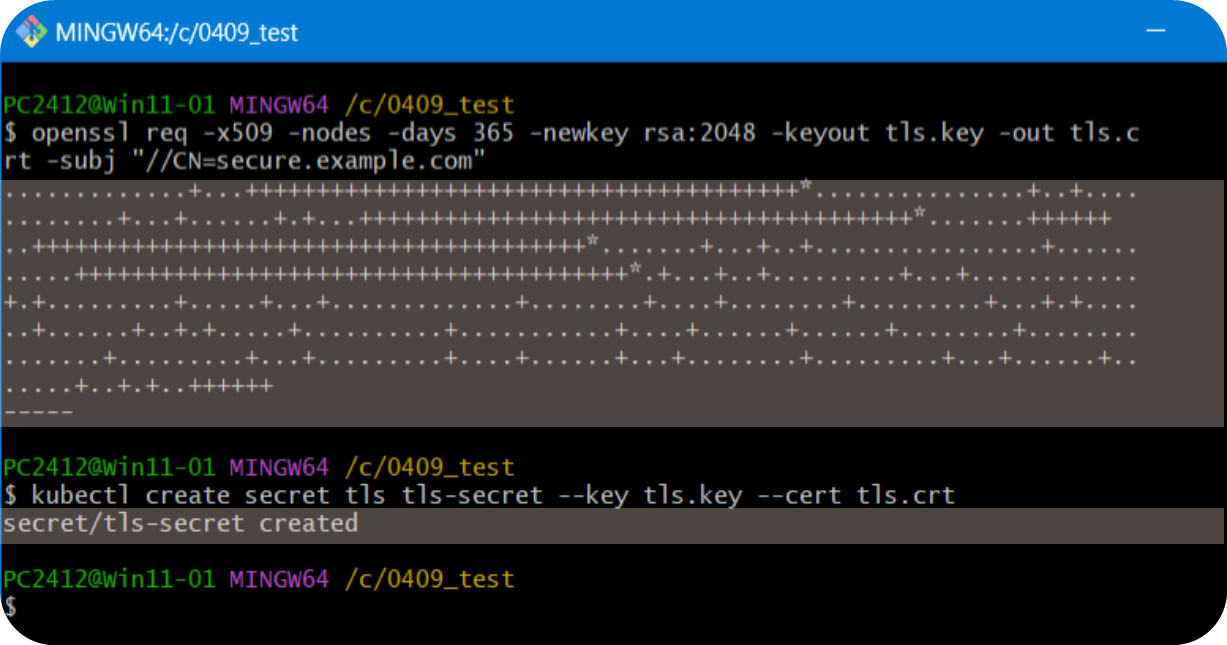
# 자체 서명 인증서 생성 Windows(GitBash)
openssl req -x509 -nodes -days 365 -newkey rsa:2048 -keyout tls.key -out tls.crt -subj "//CN=secure.example.com"

# 자체 서명 인증서 생성 Mac
# openssl req -x509 -nodes -days 365 -newkey rsa:2048 -keyout tls.key -out tls.crt -subj "/CN=secure.example.com"

# 인증서와 키를 Secret으로 저장
kubectl create secret tls tls-secret --key tls.key --cert tls.crt
6.2. TLS Ingress 생성
- 작성 파일 (tls-ingress.yaml)
# tls-ingress.yaml
apiVersion: networking.k8s.io/v1
kind: Ingress
metadata:
  name: tls-ingress
spec:
  tls:
  - hosts:
    - secure.example.com
    secretName: tls-secret
  rules:
  - host: secure.example.com
    http:
      paths:
      - path: /
        pathType: Prefix
        backend:
          service:
            name: web-service
            port:
number: 80- 실행 커맨드
# TLS Ingress 생성
kubectl apply -f tls-ingress.yaml

# Ingress 확인
kubectl get ingress
kubectl describe ingress tls-ingress
6.3. TLS Ingress 테스트
# curl에 Host 헤더와 TLS 옵션을 추가하여 테스트
# /etc/hosts 추가로 해도 됨!!!
curl.exe -k -H "Host: secure.example.com" "https://127.0.0.1/"

# 또는 완전한 테스트를 위해 /etc/hosts 파일 수정 권장
# 브라우저에서는 안전하지 않은 연결로 뜰 것이고, 그래도 연결하면 브라우저에 내용이 뜰 것이다!
# 하지만, 어디까지나 내 환경에서만 테스트해보는 openssl 셀프 사인 방식의 테스트인 점 유의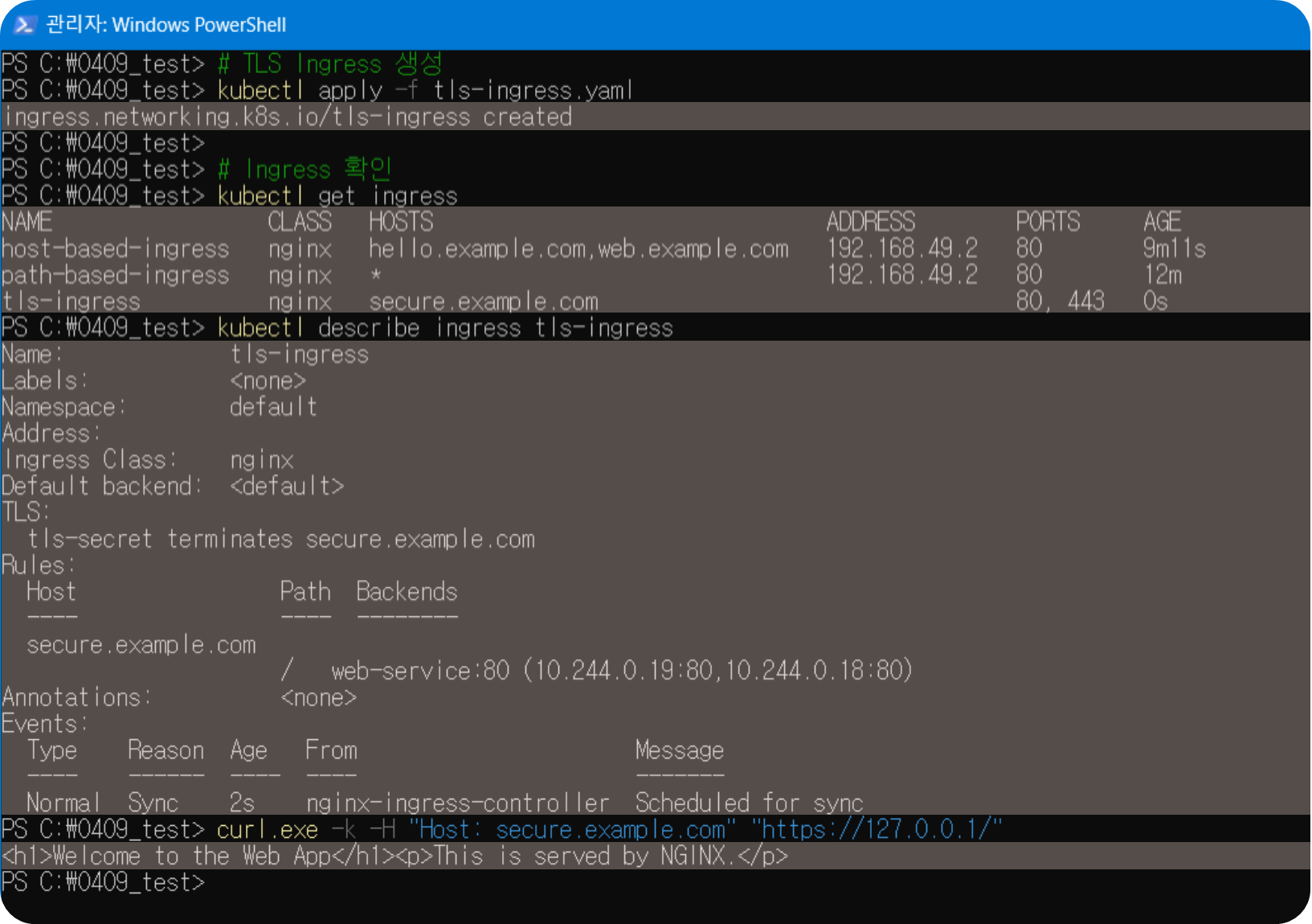
7. 네트워크 정책 실습
이제 Pod 간 통신을 제어하는 네트워크 정책을 구성해보자.
참고: Minikube의 기본 CNI는 네트워크 정책을 지원하지 않을 수 있다.
실제 효과를 보려면 --cni=calico 옵션으로 Minikube를 시작해야 할 수 있다.
7.1. 테스트 네임스페이스 및 Pod 생성
- 작성 파일 (policy-test.yaml, server.yaml, server-service.yaml)
1. policy-test.yaml
# policy-test.yaml
apiVersion: v1
kind: Pod
metadata:
  name: client
  namespace: policy-test
  labels:
    app: client
spec:
  containers:
  - name: busybox
    image: busybox:1.28
    command: ["sleep", "3600"]
2. server.yaml
# server.yaml
apiVersion: v1
kind: Pod
metadata:
  name: server
  namespace: policy-test
  labels:
    app: server
spec:
  containers:
  - name: nginx
    image: nginx:1.19
3. server-service.yaml
# server-service.yaml
apiVersion: v1
kind: Service
metadata:
  name: server-service
  namespace: policy-test
spec:
  selector:
    app: server
  ports:
- port: 80- 실행 커맨드
# 테스트 네임스페이스 생성
kubectl create namespace policy-test

# 클라이언트 Pod 생성
kubectl apply -f policy-test.yaml

# 서버 Pod 생성
kubectl apply -f server.yaml

# 서버 서비스 생성
kubectl apply -f server-service.yaml

# Pod 확인
kubectl get pods -n policy-test
7.2. 기본 연결 테스트
# 클라이언트에서 서버로 연결 테스트
kubectl exec -n policy-test client -- wget -O- server-service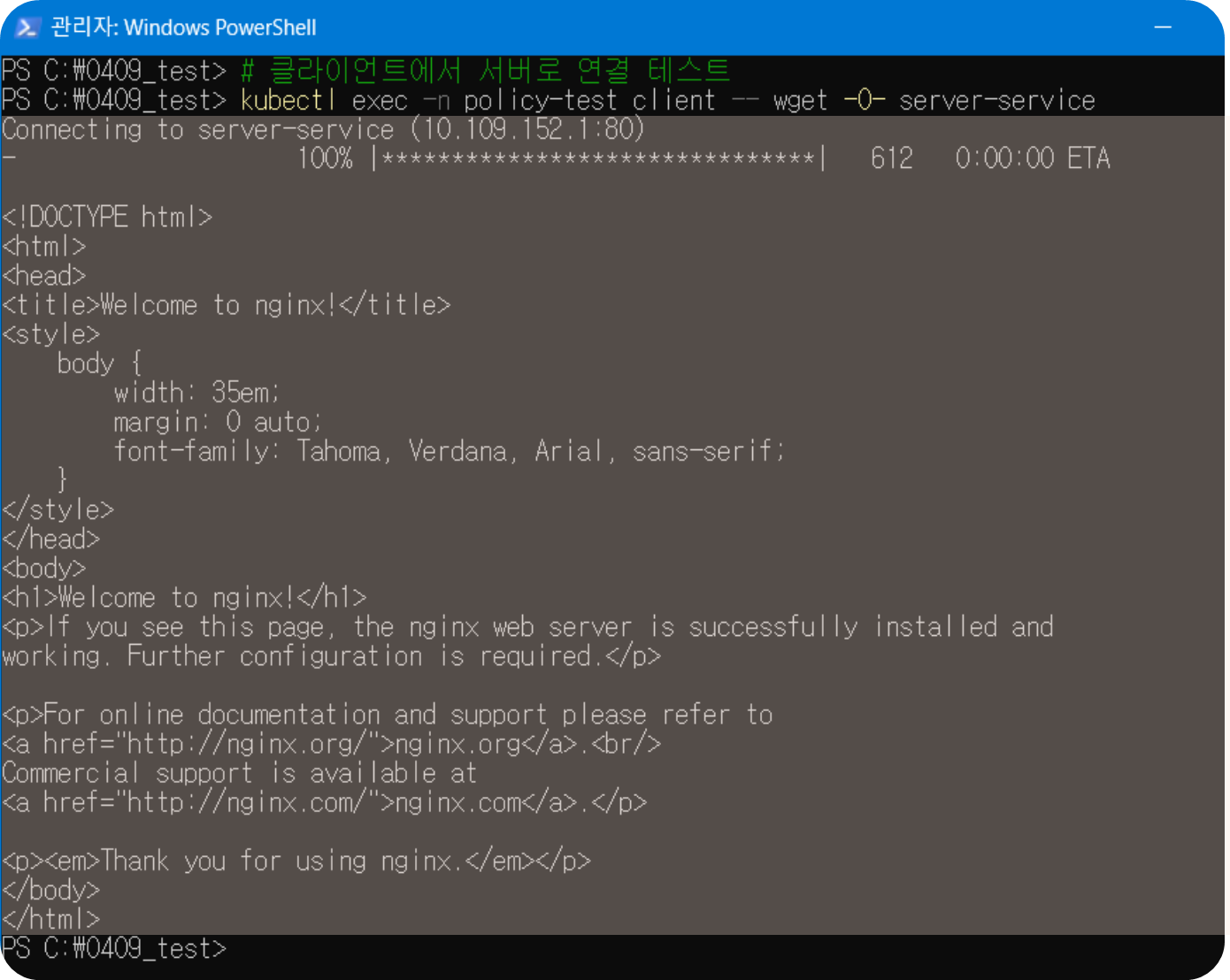
7.3. 기본 거부 네트워크 정책 생성
- 작성 파일 (default-deny.yaml)
# default-deny.yaml
apiVersion: networking.k8s.io/v1
kind: NetworkPolicy
metadata:
  name: default-deny
  namespace: policy-test
spec:
  podSelector: {}
  policyTypes:
- Ingress- 실행 커맨드
# 모든 인그레스 트래픽을 거부하는 네트워크 정책 생성
kubectl apply -f default-deny.yaml

# 네트워크 정책 확인
kubectl get networkpolicy -n policy-test
kubectl describe networkpolicy default-deny -n policy-test

# 연결 테스트 (실패해야 함)
kubectl exec -n policy-test client -- wget -O- --timeout=5 server-service

7.4. 특정 Pod에서의 접근만 허용하는 정책 생성
- 작성 파일 (allow-from-client.yaml)
# allow-from-client.yaml
apiVersion: networking.k8s.io/v1
kind: NetworkPolicy
metadata:
  name: allow-from-client
  namespace: policy-test
spec:
  podSelector:
    matchLabels:
      app: server
  policyTypes:
  - Ingress
  ingress:
  - from:
    - podSelector:
        matchLabels:
          app: client
    ports:
    - protocol: TCP
port: 80- 실행 커맨드
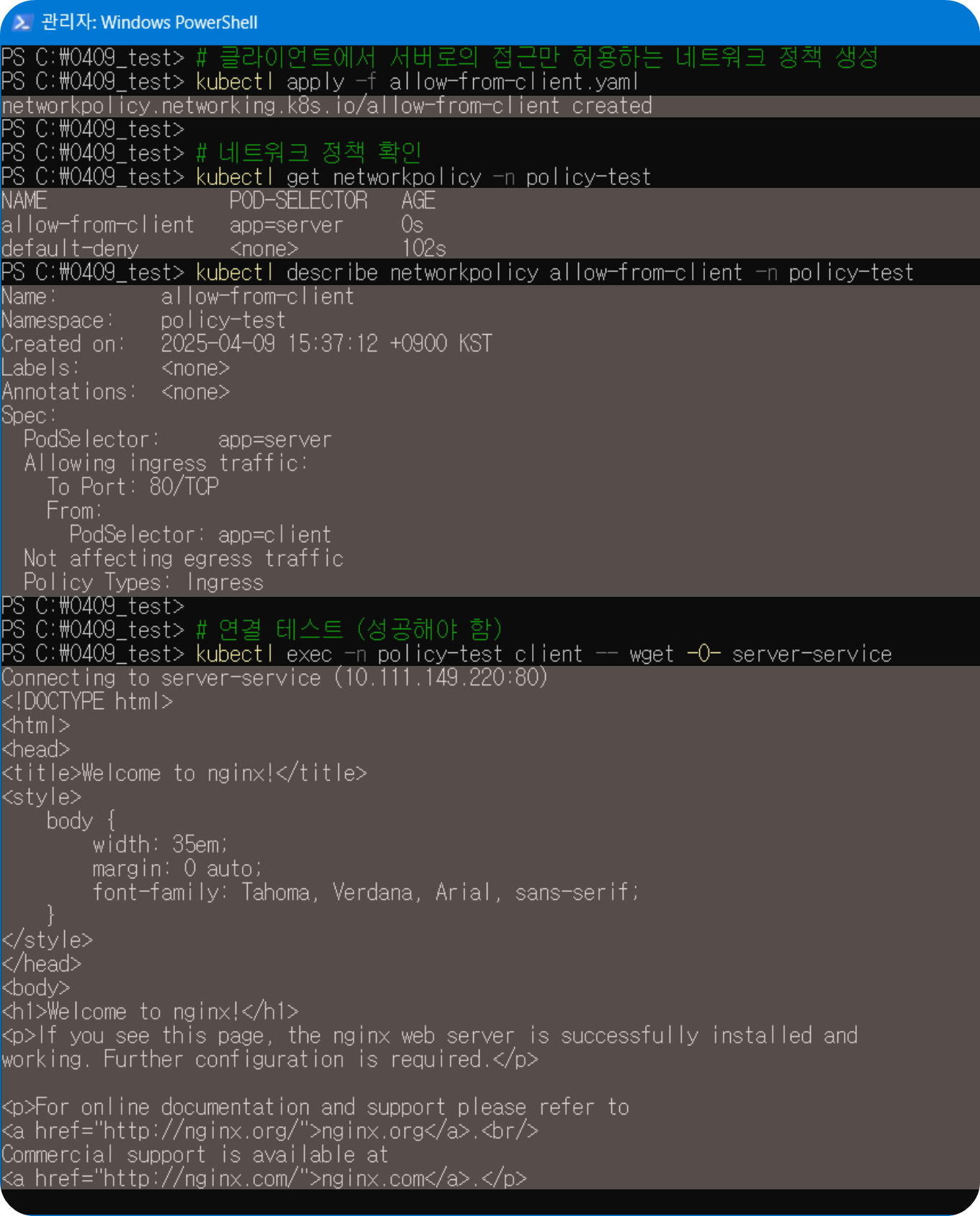
# 클라이언트에서 서버로의 접근만 허용하는 네트워크 정책 생성
kubectl apply -f allow-from-client.yaml

# 네트워크 정책 확인
kubectl get networkpolicy -n policy-test
kubectl describe networkpolicy allow-from-client -n policy-test

# 연결 테스트 (성공해야 함)
kubectl exec -n policy-test client -- wget -O- server-service
8. CNI 플러그인 확인
Minikube에서 현재 사용 중인 CNI 플러그인을 확인해보기
# 현재 클러스터에서 실행 중인 CNI 관련 파드 확인 Windows
kubectl get pods -n kube-system | Select-String calico

# Minikube에서 사용 중인 CNI 플러그인 확인 Mac
# kubectl get pods -n kube-system | grep calico

# 노드에 설치된 CNI 플러그인 설정 확인
minikube ssh "ls -la /etc/cni/net.d/"
minikube ssh "cat /etc/cni/net.d/*.conf"

# Minikube 노드 내부의 CNI 디렉토리 내용 보기
minikube ssh -- ls -la /etc/cni/net.d/

# Minikube 노드 내부의 CNI 설정 파일 내용 보기
minikube ssh -- cat /etc/cni/net.d/*.conf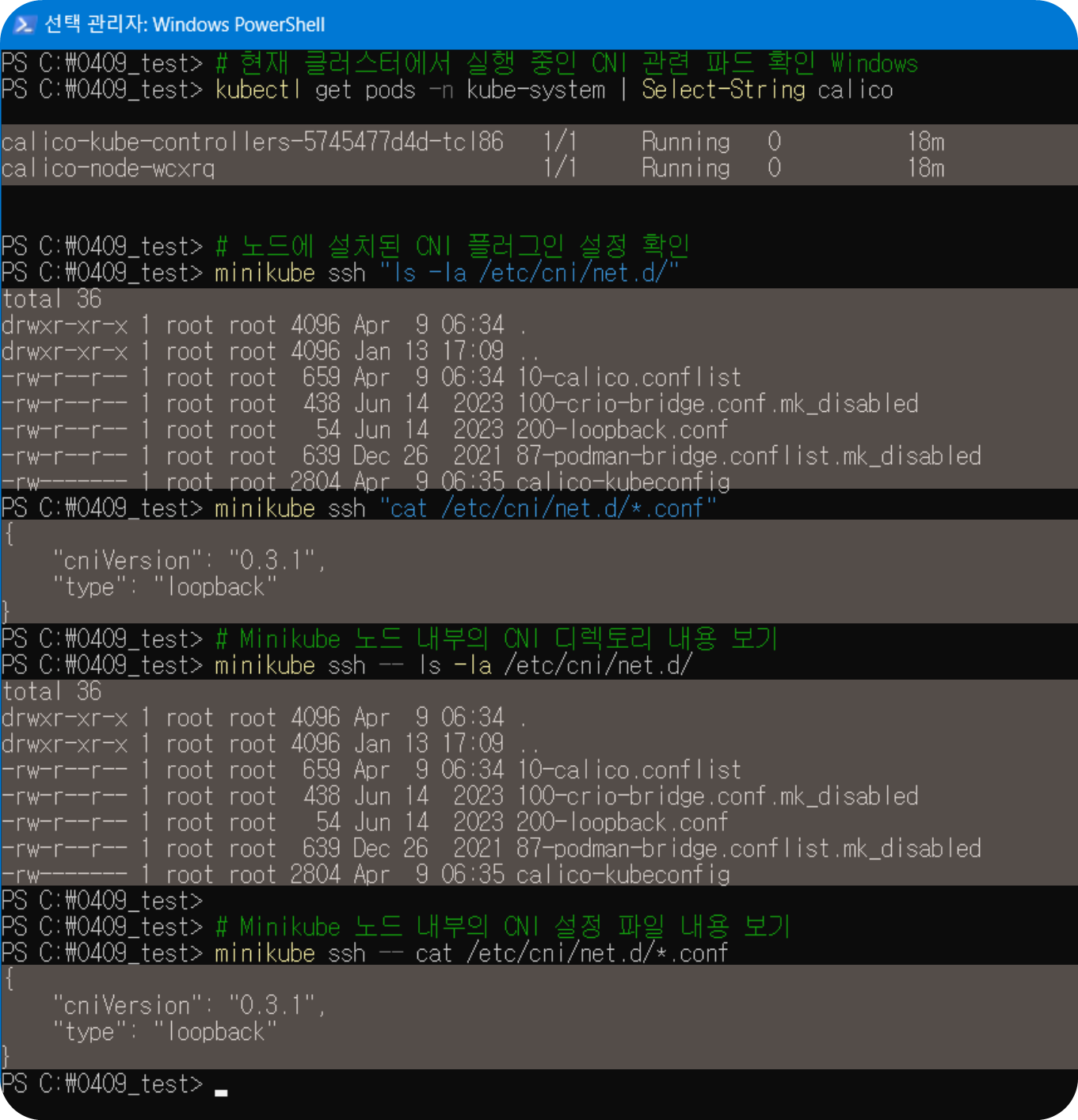
9. 리소스 정리
실습이 끝나면 생성한 리소스를 정리하는 코드
# Ingress 리소스 삭제
kubectl delete ingress basic-ingress path-based-ingress host-based-ingress tls-ingress annotated-ingress

# 서비스 삭제
kubectl delete service hello-service web-service

# 배포 삭제
kubectl delete deployment hello-app web-app

# Secret 삭제
kubectl delete secret tls-secret

# 네트워크 정책 테스트 리소스 정리
kubectl delete namespace policy-test
쿠버네티스 스토리지 실습
Minikube 환경에서 다양한 스토리지 옵션을 실습.
쿠버네티스의 기본 볼륨 타입부터 시작해서 PersistentVolume과 PersistentVolumeClaim, 그리고 StatefulSet과의 연계까지 단계별로 살펴보는 실습
1. 환경 준비
먼저 Minikube가 실행 중인지 확인합니다.
# Minikube 상태 확인
minikube status

# 만약 실행 중이 아니라면 시작
# minikube start
2. 기본 볼륨 타입 실습
2.1 emptyDir 볼륨 실습
emptyDir은 Pod가 생성될 때 생성되고 삭제될 때 함께 삭제되는 임시 볼륨입니다. 같은 Pod 내 컨테이너 간에 데이터를 공유할 때 유용합니다.
- 작성 파일 (emptydir-pod.yaml)
# emptydir-pod.yaml
apiVersion: v1
kind: Pod
metadata:
  name: emptydir-pod
spec:
  containers:
  - name: writer
    image: busybox:1.28
    command: ['/bin/sh', '-c', 'while true; do echo $(date) >> /data/output.txt; sleep 5; done']
    volumeMounts:
    - name: shared-data
      mountPath: /data
  - name: reader
    image: busybox:1.28
    command: ["/bin/sh", "-c", "while true; do cat /data/output.txt; sleep 10; done"]
    volumeMounts:
    - name: shared-data
      mountPath: /data
  volumes:
  - name: shared-data
emptyDir: {}- 실행 커맨드
# emptyDir을 사용하는 Pod 생성
kubectl apply -f emptydir-pod.yaml

# Pod 상태 확인
kubectl get pod emptydir-pod

# reader 컨테이너의 로그 확인
kubectl logs emptydir-pod -c reader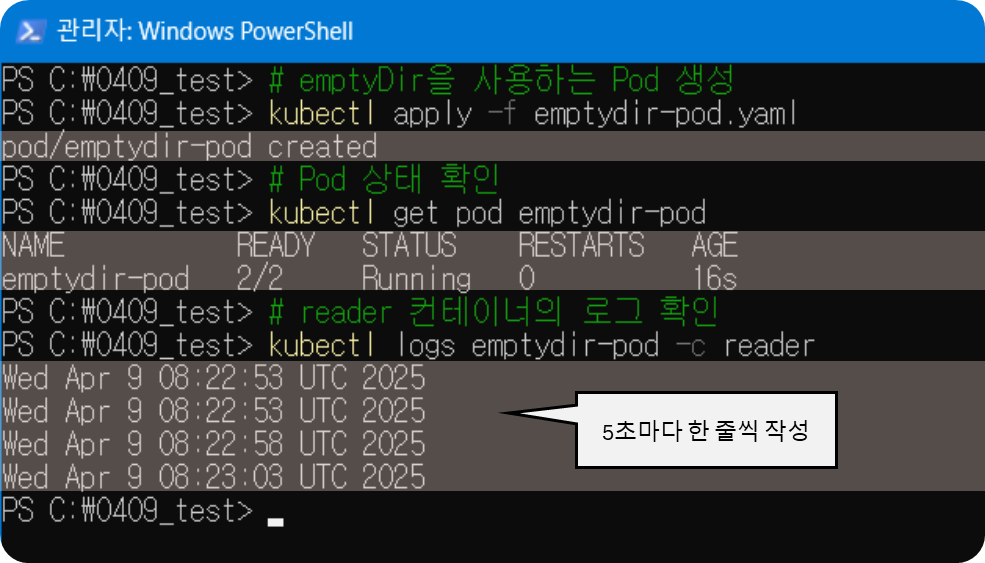
2.2 hostPath 볼륨 실습
hostPath는 노드의 파일 시스템에서 경로를 Pod에 마운트합니다. 노드의 파일에 접근할 때 유용하지만, 노드 간 데이터 공유는 되지 않는다.
- 작성 파일 (hostpath-pod.yaml)
# hostpath-pod.yaml
apiVersion: v1
kind: Pod
metadata:
  name: hostpath-pod
spec:
  containers:
  - name: test-container
    image: busybox:1.28
    command: ["/bin/sh", "-c", "ls -la /host-data; echo 'Hello from pod!' > /host-data/pod-data.txt; sleep 3600"]
    volumeMounts:
    - name: host-volume
      mountPath: /host-data
  volumes:
  - name: host-volume
    hostPath:
      path: /tmp/data
type: DirectoryOrCreate- 실행 커맨드
# hostPath를 사용하는 Pod 생성
kubectl apply -f hostpath-pod.yaml

# Pod 상태 확인
kubectl get pod hostpath-pod

# Pod 로그 확인
kubectl logs hostpath-pod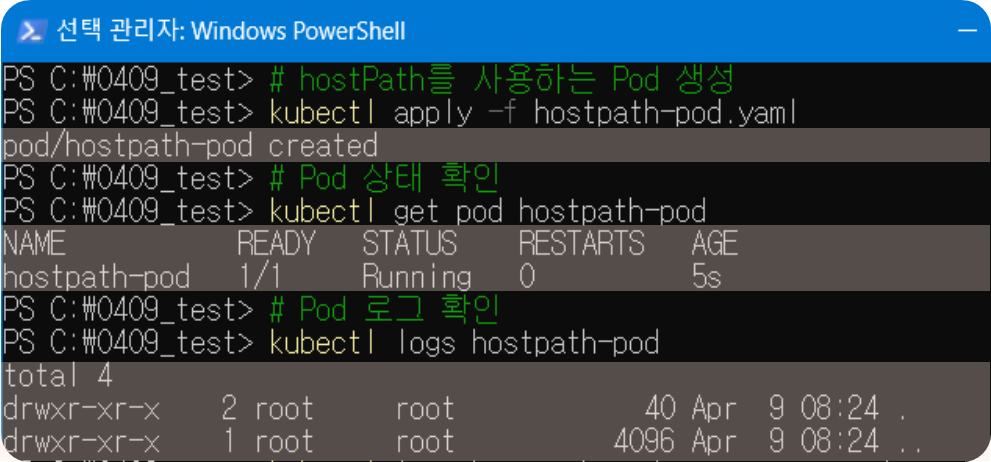
# Minikube 노드에 접속하여 파일 확인
minikube ssh
ls -la /tmp/data
cat /tmp/data/pod-data.txt
exit
2.3 ConfigMap 볼륨 실습
ConfigMap은 설정 데이터를 Pod에 제공하는 데 사용된다.
- 작성 파일 (example-config.yaml, configmap-pod.yaml)
1. example-config.yaml
# example-config.yaml
apiVersion: v1
kind: ConfigMap
metadata:
  name: example-config
data:
  config.properties: |
    app.name=MyApp
    app.environment=dev
    app.debug=true
  welcome.txt: |
    Welcome to Kubernetes Storage Practice!
    This file is from a ConfigMap.
2. configmap-pod.yaml
# configmap-pod.yaml
apiVersion: v1
kind: Pod
metadata:
  name: configmap-pod
spec:
  containers:
  - name: test-container
    image: busybox:1.28
    command: ["/bin/sh", "-c", "cat /config/config.properties; echo; cat /config/welcome.txt; sleep 10"]
    volumeMounts:
    - name: config-volume
      mountPath: /config
  volumes:
  - name: config-volume
    configMap:
name: example-config- 실행 커맨드
# ConfigMap 생성
kubectl apply -f example-config.yaml

# ConfigMap을 볼륨으로 사용하는 Pod 생성
kubectl apply -f configmap-pod.yaml

# Pod 로그 확인
kubectl logs configmap-pod
#app.name=MyApp
#app.environment=development
#app.debug=true
#
#Welcome to Kubernetes Storage Practice!
#This file is from a ConfigMap.
※ configmap 수정
- 기존파일 수정 (example-config.yaml)
# example-config.yaml
apiVersion: v1
kind: ConfigMap
metadata:
  name: example-config
data:
  config.properties: |
    app.name=MyApp
    app.environment=prod
    app.debug=true
  welcome.txt: |
    Welcome to Kubernetes Storage Practice!
This file is from a ConfigMap.- 실행 커맨드
# configmap에서 app.environment를 prod로 수정한 뒤, 다시 체크
kubectl apply -f example-config.yaml

# Pod 로그 확인
kubectl logs configmap-pod
#app.name=MyApp
#app.environment=prod
#app.debug=true
#
#Welcome to Kubernetes Storage Practice!
#This file is from a ConfigMap.

3. PersistentVolume과 PersistentVolumeClaim 실습
3.1 로컬 PersistentVolume 생성
Minikube 환경에서 간단히 테스트하기 위해 hostPath 기반 PV를 생성합니다.
manual로 Static provisioning(Storage Class 미사용)
- 작성 파일 (local-pv.yaml)
# local-pv.yaml
apiVersion: v1
kind: PersistentVolume
metadata:
  name: local-pv
spec:
  capacity:
    storage: 1Gi
  volumeMode: Filesystem
  accessModes:
  - ReadWriteOnce
  persistentVolumeReclaimPolicy: Retain
  storageClassName: manual
  hostPath:
    path: /data/pv
type: DirectoryOrCreate- 실행 커맨드
# PersistentVolume 생성
kubectl apply -f local-pv.yaml

# PersistentVolume 확인
kubectl get pv
kubectl describe pv local-pv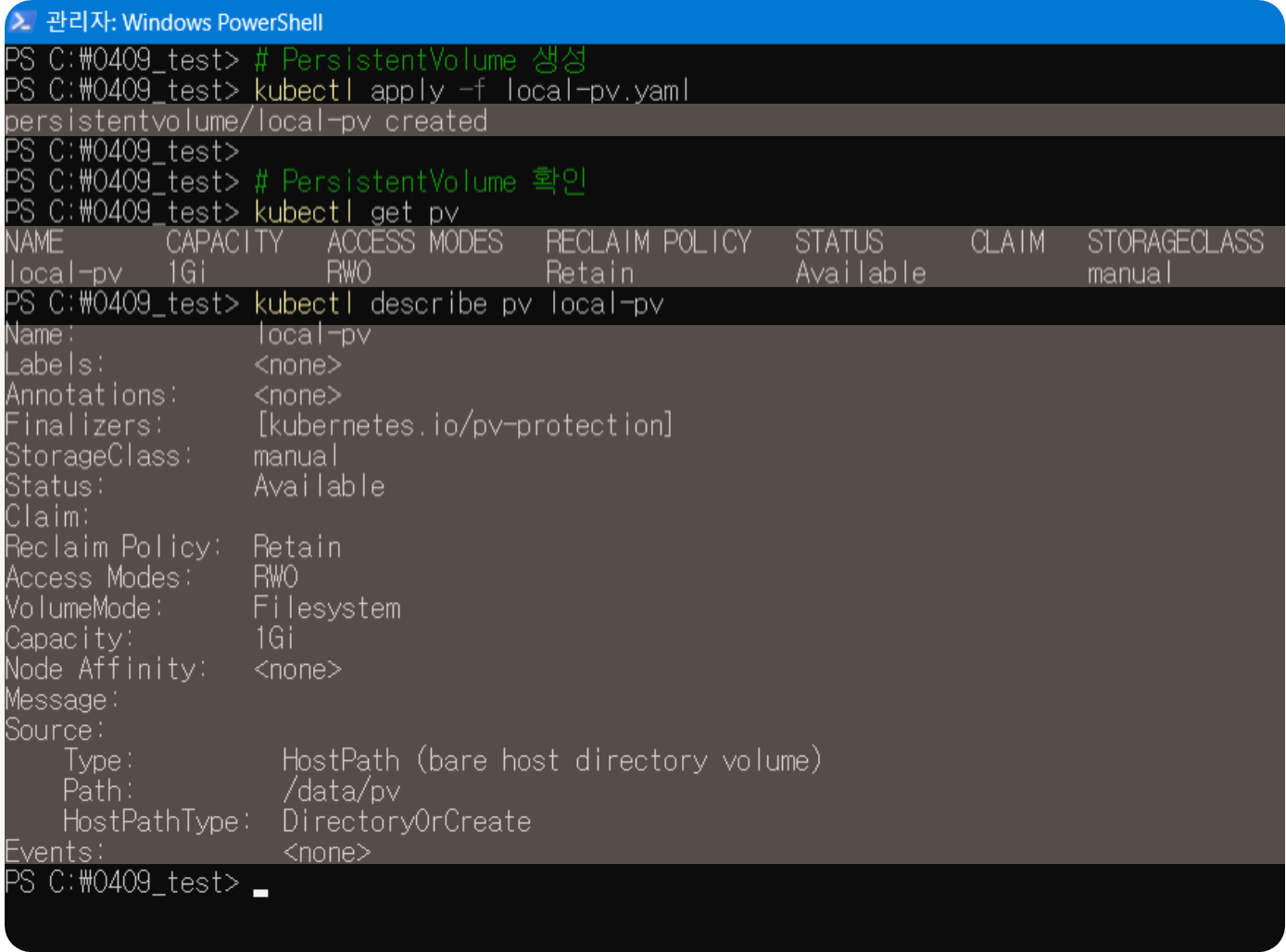
3.2 PersistentVolumeClaim 생성 및 바인딩
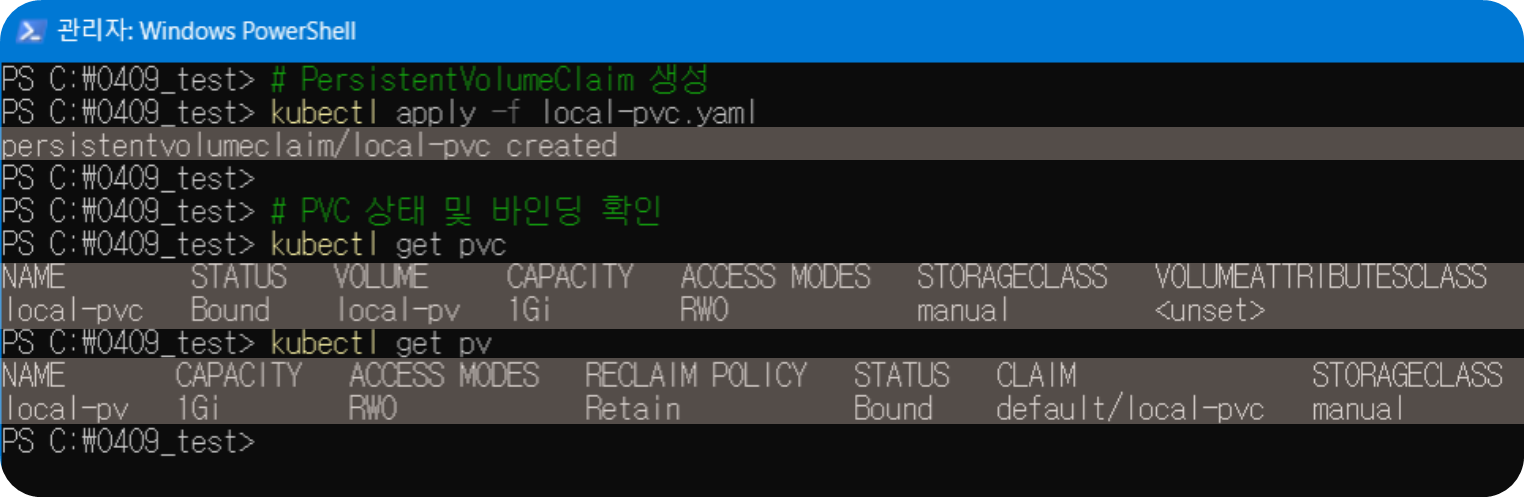
manual로 Static provisioning 연결(Storage Class 미사용)
- 작성 파일 (local-pvc.yaml)
# local-pvc.yaml
apiVersion: v1
kind: PersistentVolumeClaim
metadata:
  name: local-pvc
spec:
  storageClassName: manual
  accessModes:
    - ReadWriteOnce
  resources:
    requests:
storage: 500Mi- 실행 커맨드
# PersistentVolumeClaim 생성
kubectl apply -f local-pvc.yaml

# PVC 상태 및 바인딩 확인
kubectl get pvc
kubectl get pv
3.3 PVC를 사용하는 Pod 생성
- 작성 파일 (pvc-pod.yaml)
# pvc-pod.yaml
apiVersion: v1
kind: Pod
metadata:
  name: pvc-pod
spec:
  containers:
  - name: app
    image: busybox:1.28
    command: ["/bin/sh", "-c", "echo 'This data will persist!' > /data/persistent-data.txt; ls -la /data; cat /data/persistent-data.txt; sleep 3600"]
    volumeMounts:
    - name: data-volume
      mountPath: /data
  volumes:
  - name: data-volume
    persistentVolumeClaim:
claimName: local-pvc- 실행 커맨드
# PVC를 사용하는 Pod 생성
kubectl apply -f pvc-pod.yaml

# Pod 로그 확인
kubectl logs pvc-pod
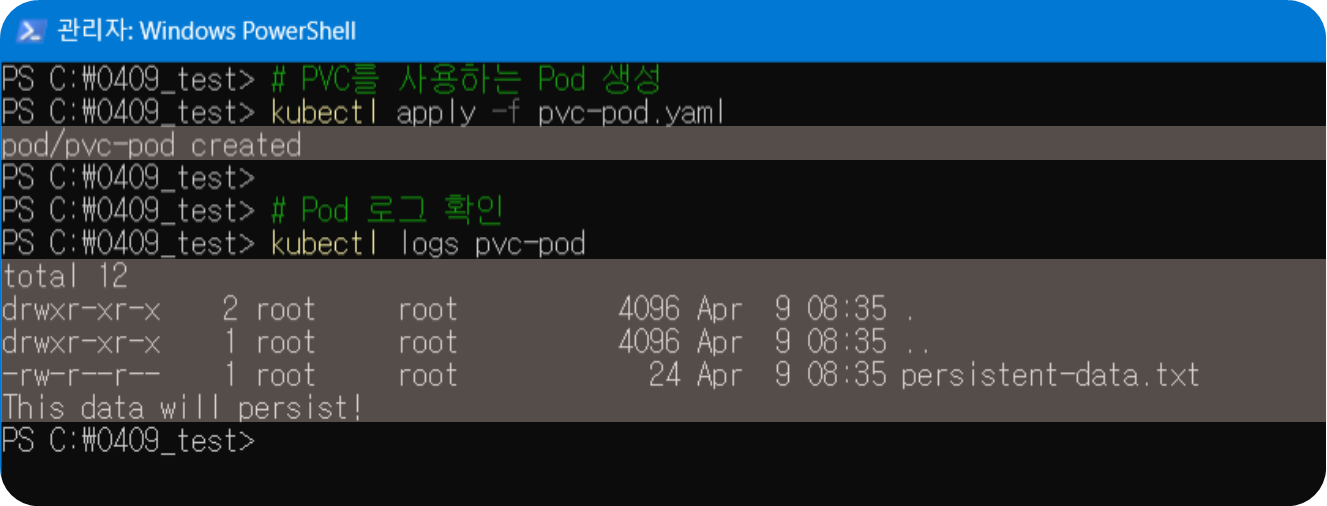
3.4 Pod 삭제 후 데이터 지속성 확인
- 작성 파일 (pvc-pod-2.yaml)
# pvc-pod-2.yaml
apiVersion: v1
kind: Pod
metadata:
  name: pvc-pod-2
spec:
  containers:
  - name: app
    image: busybox:1.28
    command: ["/bin/sh", "-c", "ls -la /data; cat /data/persistent-data.txt; sleep 3600"]
    volumeMounts:
    - name: data-volume
      mountPath: /data
  volumes:
  - name: data-volume
    persistentVolumeClaim:
claimName: local-pvc- 실행 커맨드
# Pod 삭제
kubectl delete pod pvc-pod

# 새 Pod 생성하여 데이터 확인
kubectl apply -f pvc-pod-2.yaml

# 새 Pod에서 데이터 확인
kubectl logs pvc-pod-2

# 그대로 있는 것이 확인 되면, 영속적인 볼륨을 사용한 것임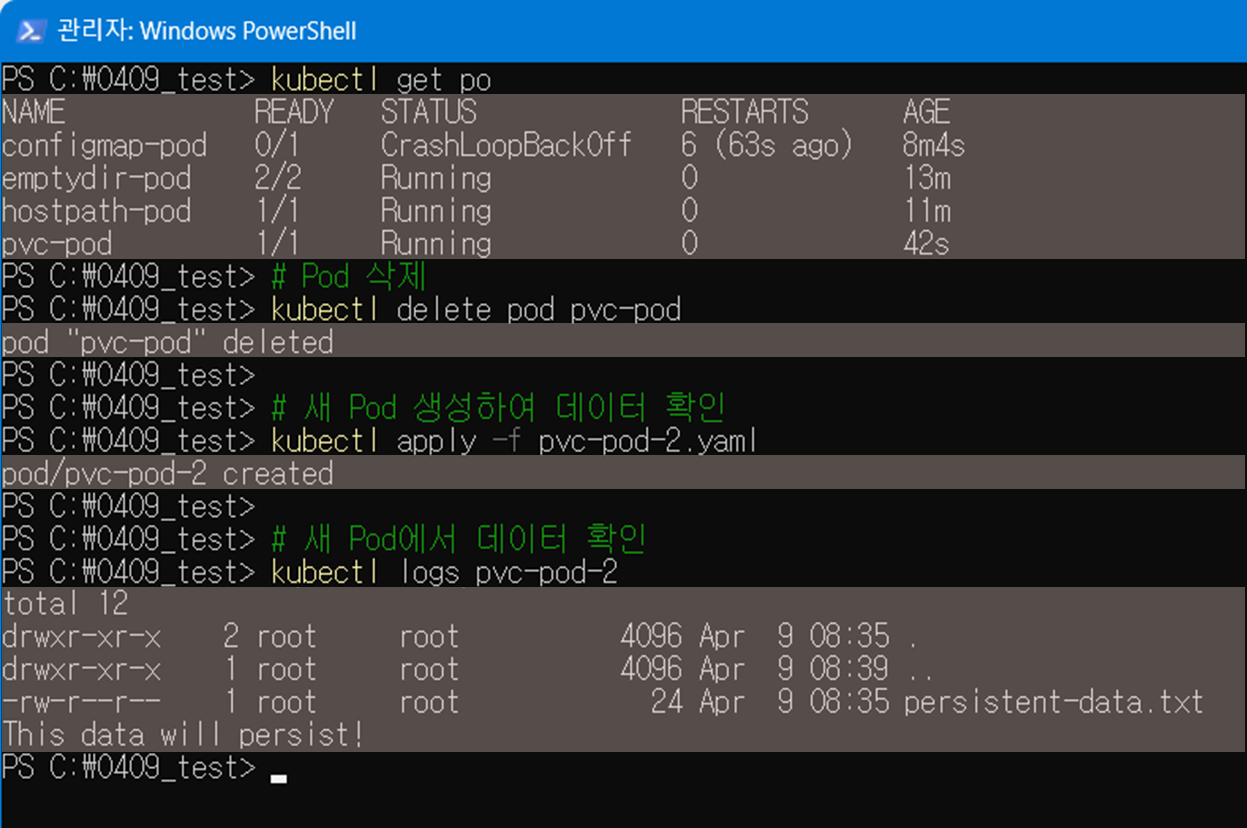
4. StorageClass와 동적 프로비저닝 실습
Minikube에는 기본 StorageClass가 설정되어 있어 동적 프로비저닝을 테스트
4.1 기본 StorageClass 확인
# 기본 StorageClass 확인
kubectl get storageclass
kubectl describe storageclass standard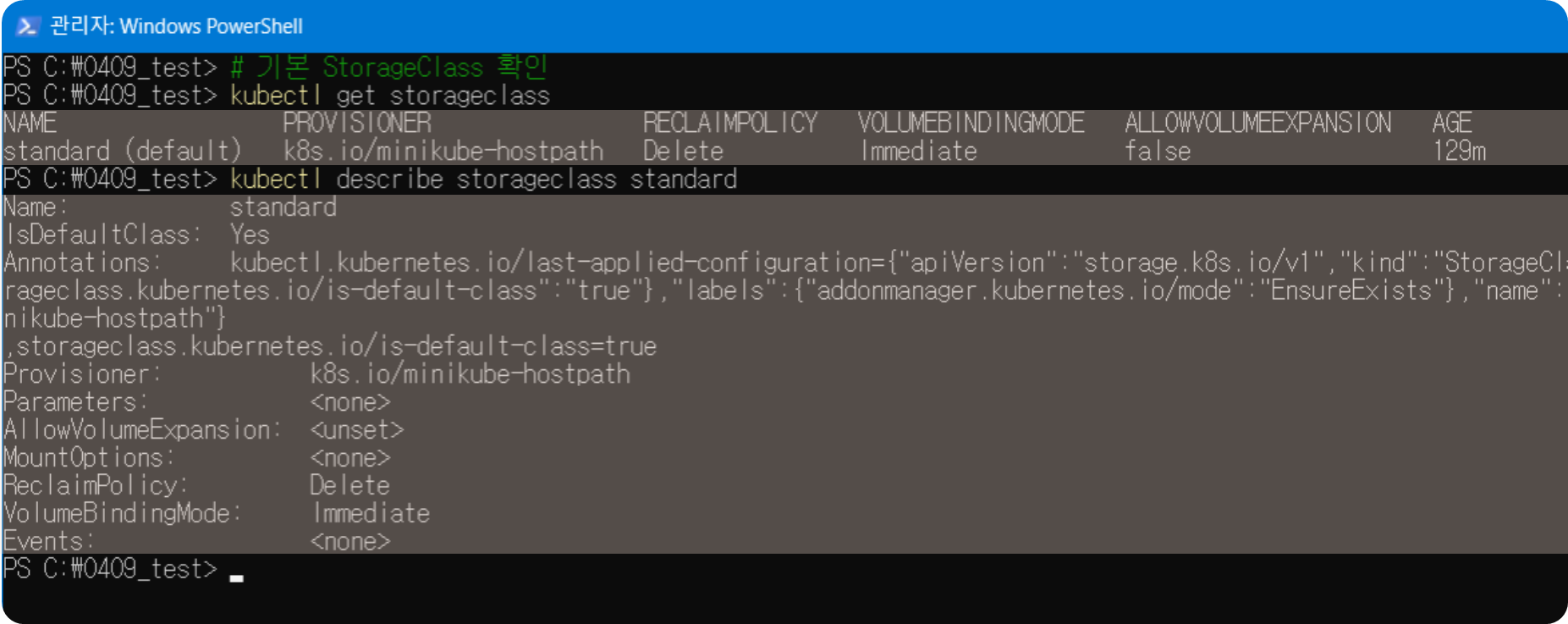
4.2 동적 PVC 생성
- 작성 파일 (dynamic-pvc.yaml)
# dynamic-pvc.yaml
apiVersion: v1
kind: PersistentVolumeClaim
metadata:
  name: dynamic-pvc
spec:
  accessModes:
    - ReadWriteOnce
  resources:
    requests:
storage: 1Gi- 실행 커맨드
# 동적 프로비저닝을 위한 PVC 생성 (StorageClass 명시하지 않음)
kubectl apply -f dynamic-pvc.yaml

# PVC 및 자동 생성된 PV 확인
kubectl get pvc dynamic-pvc
kubectl get pv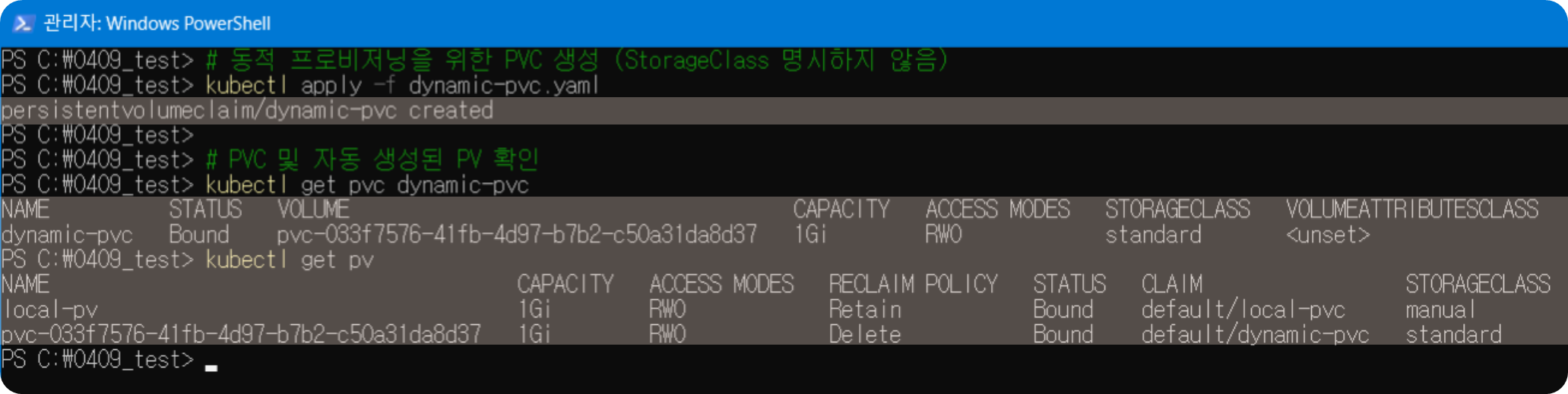
4.3 동적 PVC를 사용하는 Pod 생성
- 작성 파일 (dyanmic-pod.yaml)
# dynamic-pod.yaml
apiVersion: v1
kind: Pod
metadata:
  name: dynamic-pod
spec:
  containers:
  - name: app
    image: busybox:1.28
    command: ["/bin/sh", "-c", "echo 'This is dynamically provisioned data' > /dynamic-data/data.txt; ls -la /dynamic-data; cat /dynamic-data/data.txt; sleep 3600"]
    volumeMounts:
    - name: dynamic-volume
      mountPath: /dynamic-data
  volumes:
  - name: dynamic-volume
    persistentVolumeClaim:
claimName: dynamic-pvc- 실행 커맨드
# 동적 PVC를 사용하는 Pod 생성
kubectl apply -f dynamic-pod.yaml

# Pod 로그 확인
kubectl logs dynamic-pod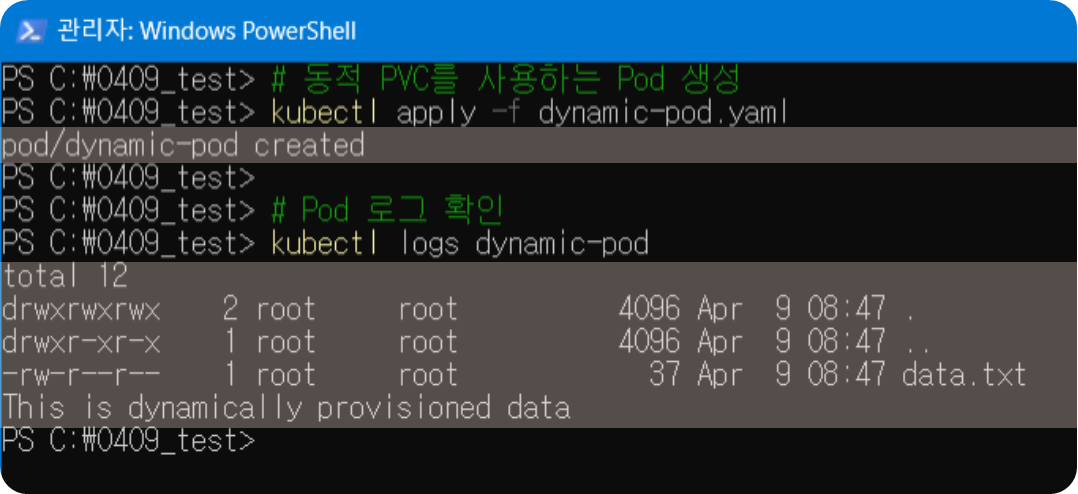
5. StatefulSet과 스토리지 연계 실습
StatefulSet을 사용하여 각 Pod에 고유한 PVC를 자동으로 생성하고 관리해 보자.
5.1 서비스 생성 (StatefulSet용 Headless Service)
- 작성 파일 (nginx-headless.yaml)
# nginx-headless.yaml
apiVersion: v1
kind: Service
metadata:
  name: nginx-headless
spec:
  ports:
  - port: 80
    name: web
  clusterIP: None
  selector:
    app: nginx-stateful
# Headless Service 생성
kubectl apply -f nginx-headless.yaml5.2 StatefulSet 생성
- 작성 파일 (web.yaml)
# web.yaml
apiVersion: apps/v1
kind: StatefulSet
metadata:
  name: web
spec:
  serviceName: "nginx-headless"
  replicas: 3
  selector:
    matchLabels:
      app: nginx-stateful
  template:
    metadata:
      labels:
        app: nginx-stateful
    spec:
      containers:
      - name: nginx
        image: nginx:1.19
        ports:
        - containerPort: 80
          name: web
        volumeMounts:
        - name: www
          mountPath: /usr/share/nginx/html
  volumeClaimTemplates:
  - metadata:
      name: www
    spec:
      accessModes: [ "ReadWriteOnce" ]
      resources:
        requests:
storage: 100Mi- 실행 커맨드
# StatefulSet 생성
kubectl apply -f web.yaml

# StatefulSet 및 Pod 상태 확인
kubectl get statefulset
kubectl get pods -l app=nginx-stateful -w

# pod마다 volumeClaimTemplate를 이용해서 pvc를 생성하여 각각의 pv로 연결
5.3 자동 생성된 PVC 확인
# StatefulSet에 의해 생성된 PVC 확인
kubectl get pvc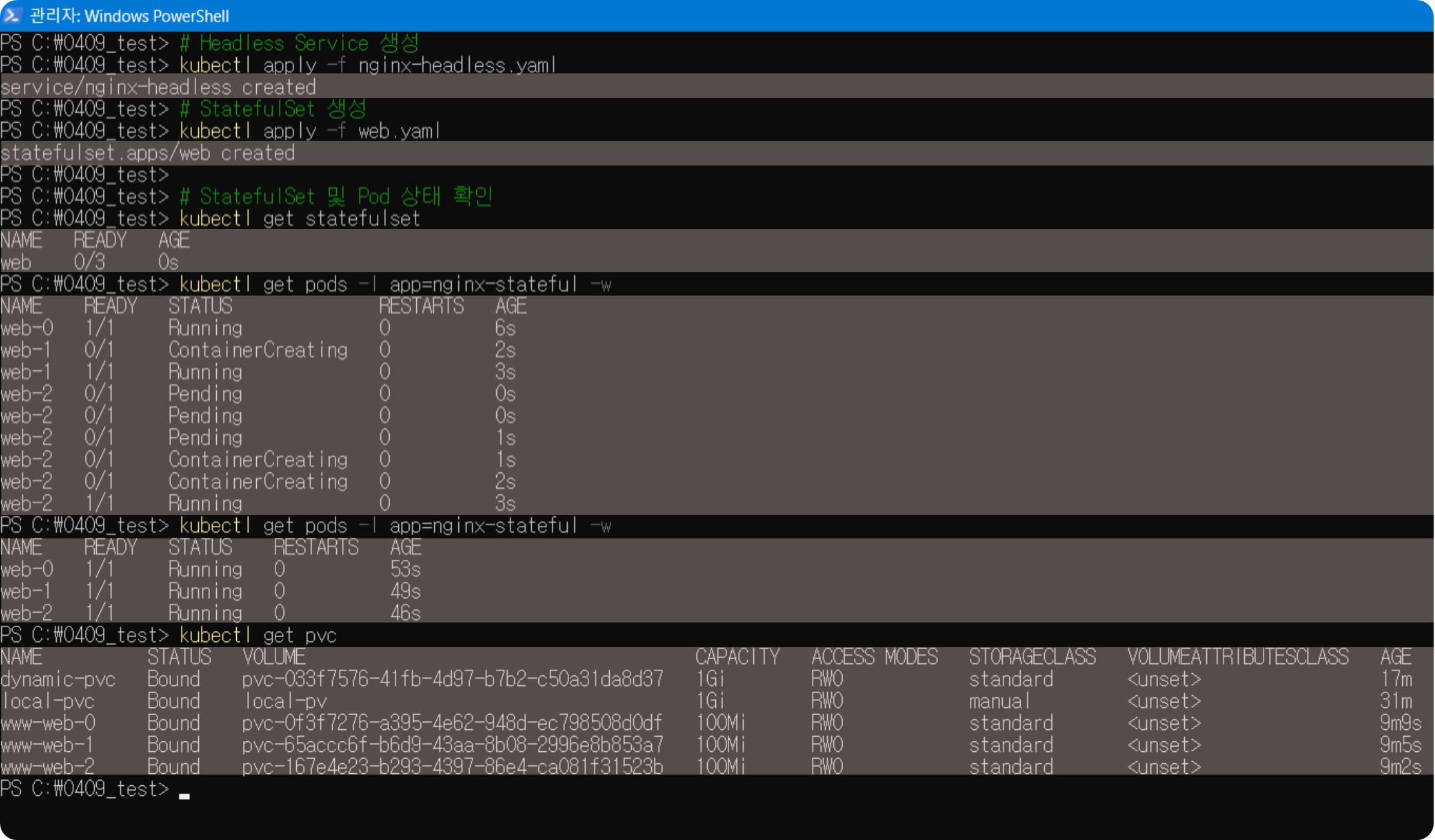
5.4 각 Pod에 고유한 데이터 쓰기
# window
# 각 Pod에 고유한 데이터 쓰기
for ($i = 0; $i -le 2; $i++) {
    kubectl exec web-$i -- /bin/bash -c "echo 'Hello from Pod web-$i' > /usr/share/nginx/html/index.html"
}

# 각 Pod의 데이터 확인
for ($i = 0; $i -le 2; $i++) {
    Write-Host "=== Pod web-$i ==="
    kubectl exec web-$i -- cat /usr/share/nginx/html/index.html
}
5.5 Pod 삭제 후 데이터 지속성 확인
# web-1 Pod 삭제
kubectl delete pod web-1

# Pod가 다시 생성될 때까지 대기
kubectl get pods -l app=nginx-stateful -w

# 다시 생성된 Pod에서 데이터 확인
kubectl exec web-1 -- cat /usr/share/nginx/html/index.html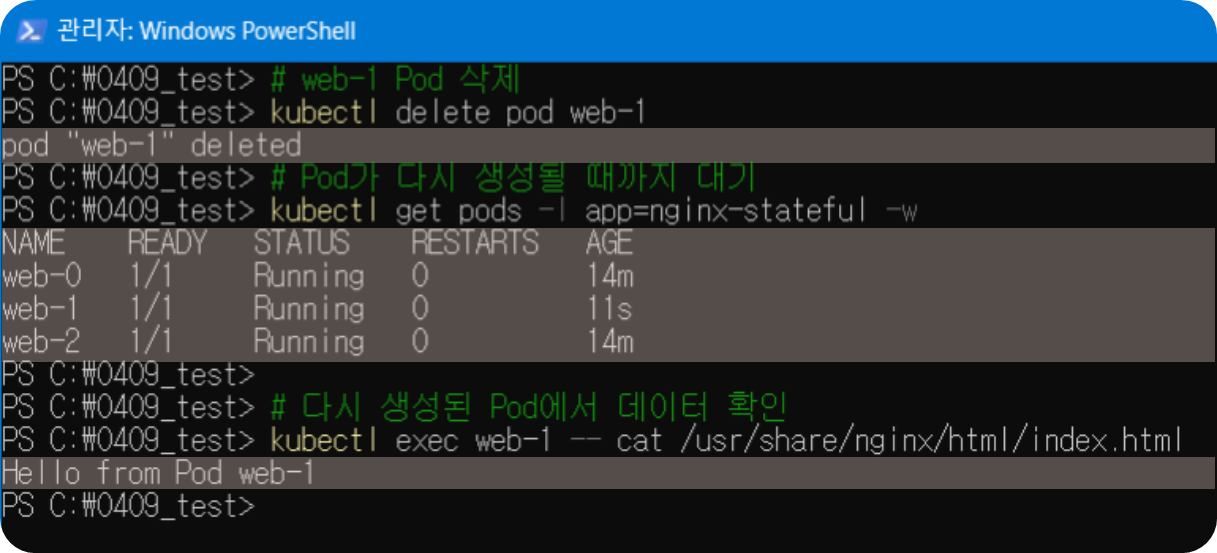
6. 백업 및 복구 간단 실습
실제 환경에서는 Velero와 같은 도구를 사용하지만, 간단한 백업/복구를 시뮬레이션하는 실습
6.1 데이터 백업 (시뮬레이션)
# 어플리케이션 레벨 백업 시뮬레이션 (컨테이너 내 데이터를 로컬로 복사)
kubectl exec pvc-pod-2 -- cat /data/persistent-data.txt > backup.txt

# 백업 내용 확인
cat backup.txt

6.2 복구 시뮬레이션
# 어플리케이션 데이터 업데이트하여 손상 시뮬레이션
kubectl exec pvc-pod-2 -- sh -c "echo 'Corrupted data' > /data/persistent-data.txt"
kubectl exec pvc-pod-2 -- cat /data/persistent-data.txt

# 백업에서 복구 시뮬레이션
kubectl exec pvc-pod-2 -- sh -c "echo '$(cat backup.txt)' > /data/persistent-data.txt"
kubectl exec pvc-pod-2 -- cat /data/persistent-data.txt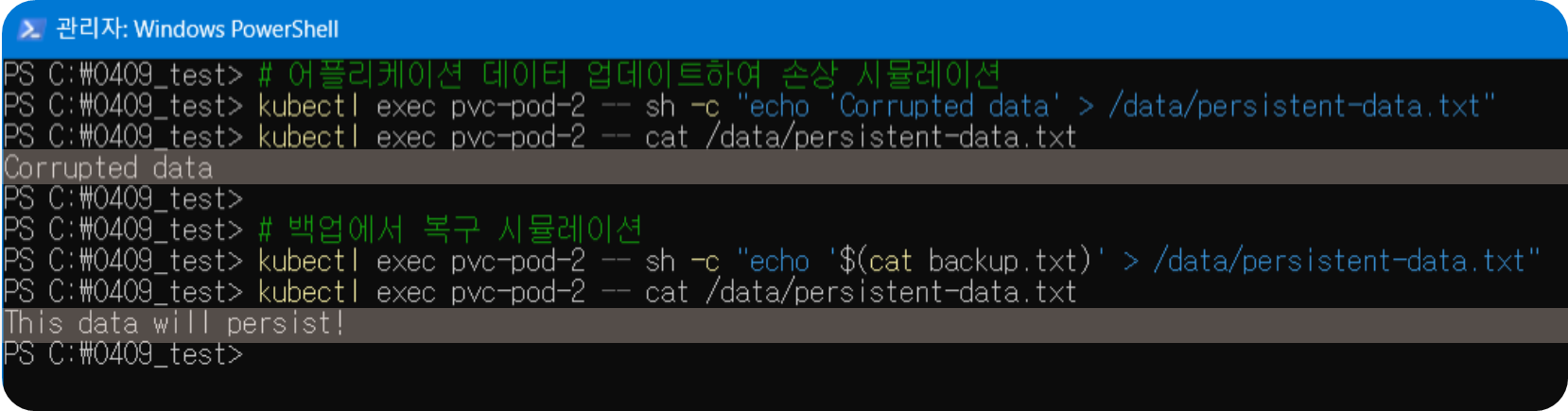
7. 리소스 정리
실습이 끝났으면 생성한 리소스를 정리합니다.
# Pod 삭제
kubectl delete pod emptydir-pod hostpath-pod configmap-pod pvc-pod pvc-pod-2 dynamic-pod

# ConfigMap 삭제
kubectl delete configmap example-config

# StatefulSet 및 서비스 삭제
kubectl delete statefulset web
kubectl delete service nginx-headless

# PVC 삭제
kubectl delete pvc local-pvc dynamic-pvc
kubectl delete pvc www-web-0 www-web-1 www-web-2

# PV 삭제 (만약 Retain 정책으로 남아있다면)
kubectl delete pv local-pv

# 백업 파일 삭제
rm backup.txt
본 후기는 [카카오엔터프라이즈x스나이퍼팩토리] 카카오클라우드로 배우는 AIaaS 마스터 클래스 (B-log) 리뷰로 작성 되었습니다.
'학습일지 > K-Digital Traing' 카테고리의 다른 글
| [KDT] AIaaS 마스터클래스 3주차 - Prometheus & Grafana 모니터링 실습 (0) | 2025.04.11 |
|---|---|
| [KDT] AIaaS 마스터클래스 3주차 - 클라우드 어플리케이션 배포 실습 (0) | 2025.04.10 |
| [KDT] AIaaS 마스터클래스 2주차 - 3 Tier Application 배포 실습 (0) | 2025.04.04 |
| [KDT] AIaaS 마스터클래스 2주차 - VM 배포 실습 (0) | 2025.04.03 |
| [KDT] AIaaS 마스터클래스 2주차 - Prometheus, Grafana 실습 (0) | 2025.04.02 |